Google Drive Integration: Sign Documents Straight from Drive with BeeSign
Skip the download-and-re-upload dance. With the BeeSign app from the Google Workspace Marketplace, you can open any PDF in Drive directly in the BeeSign editor, assign signers, and send it for electronic signature — all in a few clicks.
Mustafa Abusharkh
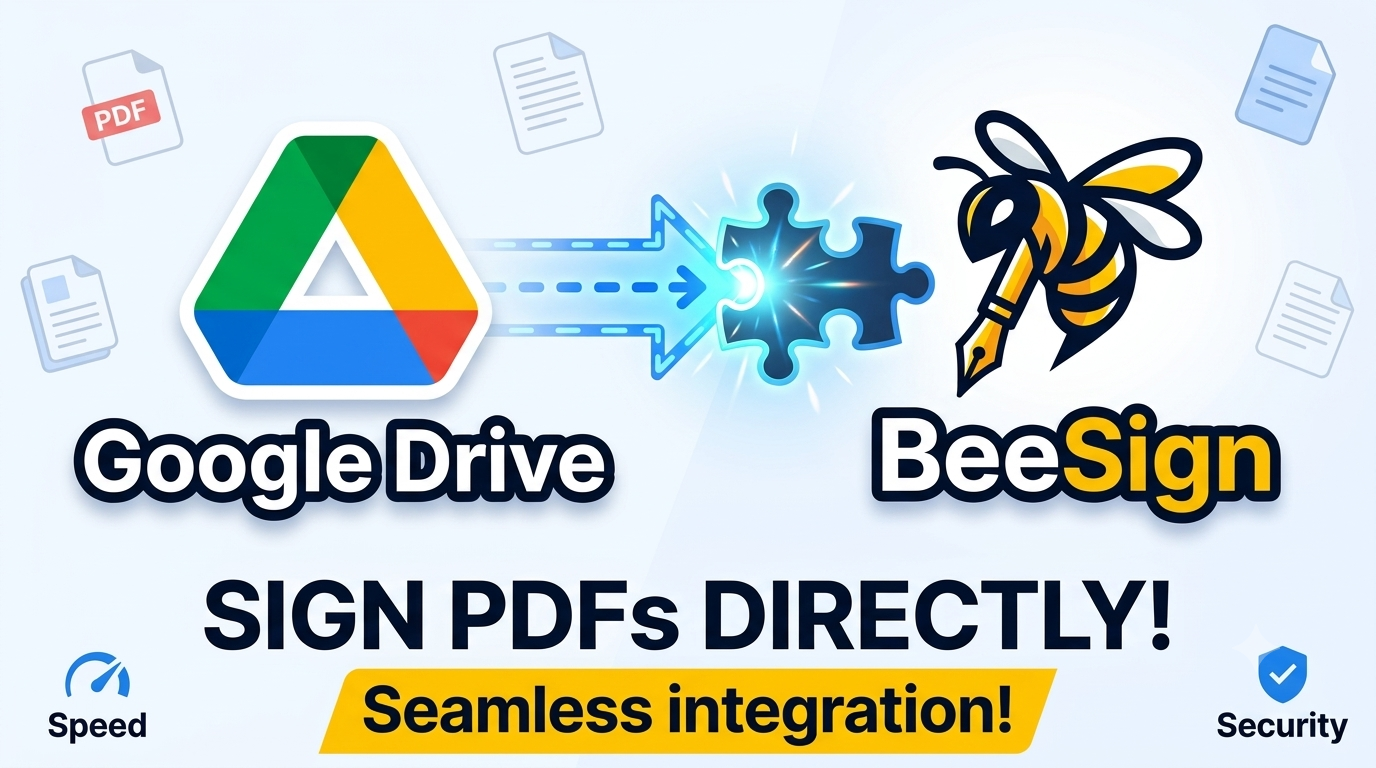
If your contracts, agreements, and forms already live in Google Drive, sending one for signature shouldn't mean downloading the file, opening a separate tab, and re-uploading it. With the BeeSign app on the Google Workspace Marketplace, you can open a PDF straight from Drive inside the BeeSign editor, assign your signers, and send it for electronic signature — without ever leaving your Google workflow. In this guide, we'll walk through the whole thing in three simple steps.
🎥 Watch the full walkthrough — signing a Google Drive document with BeeSign.
Step 1: Open Your Document with BeeSign from Google Drive
Once you've installed BeeSign from the Google Workspace Marketplace, it shows up right inside Google Drive. Find the PDF you want to sign — say, an employment-contract.pdf — right-click it (or use the three-dot menu), hover over "Open with", and choose BeeSign from the list of connected apps.
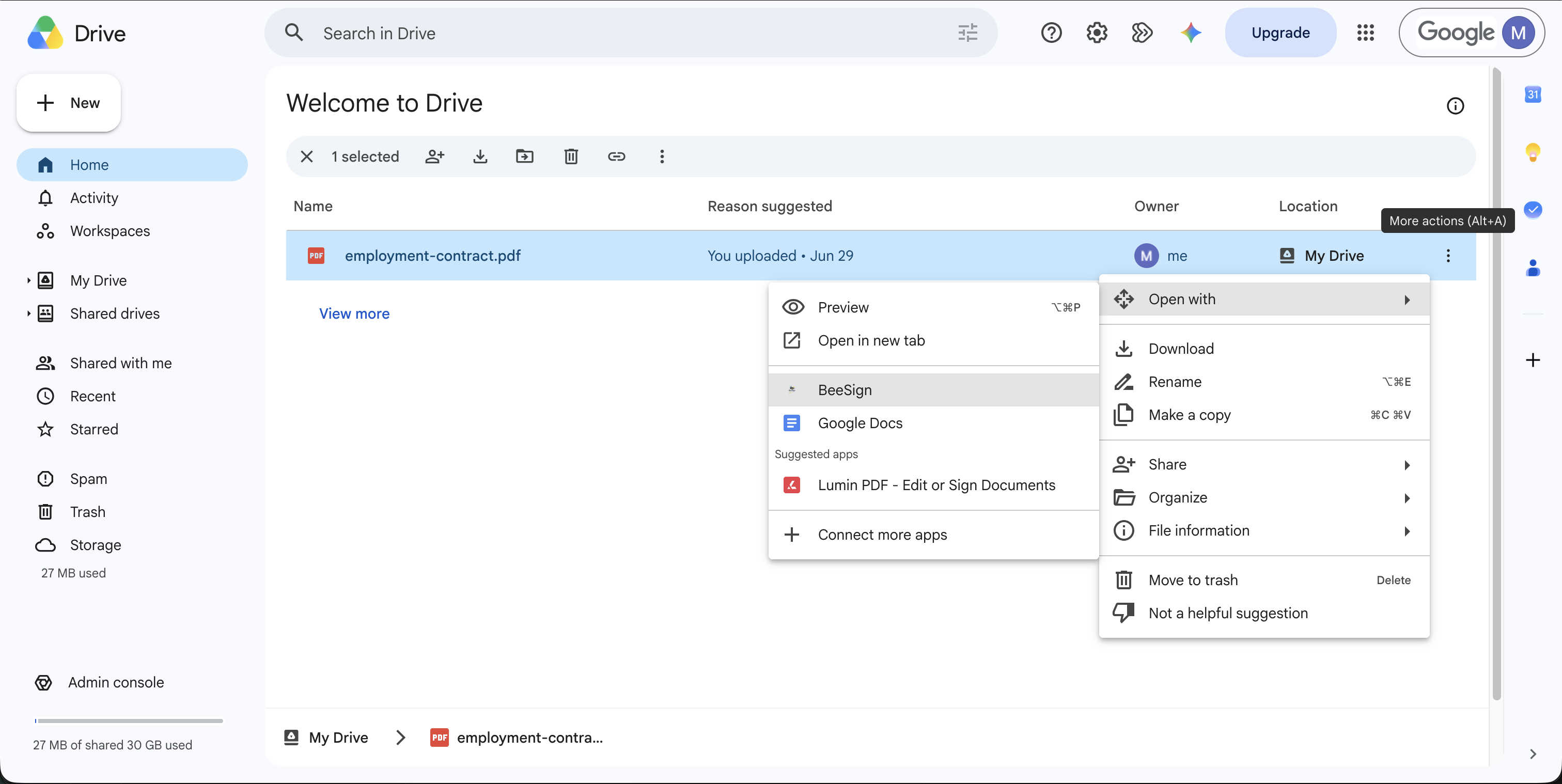
That single click is all it takes to hand the document off to BeeSign. There's no manual download, no digging through your Downloads folder, and no re-uploading — Drive passes the file directly to BeeSign for you.
Step 2: Sign In with Google to Grant Access
The first time you open a document this way, BeeSign asks you to sign in with Google. Choose the account that owns the file, and Google will ask for your permission so BeeSign can pull that Drive document into your BeeSign dashboard. This is standard Google SSO — your credentials stay with Google, and you can review BeeSign's Privacy Policy and Terms of Service right on the consent screen.
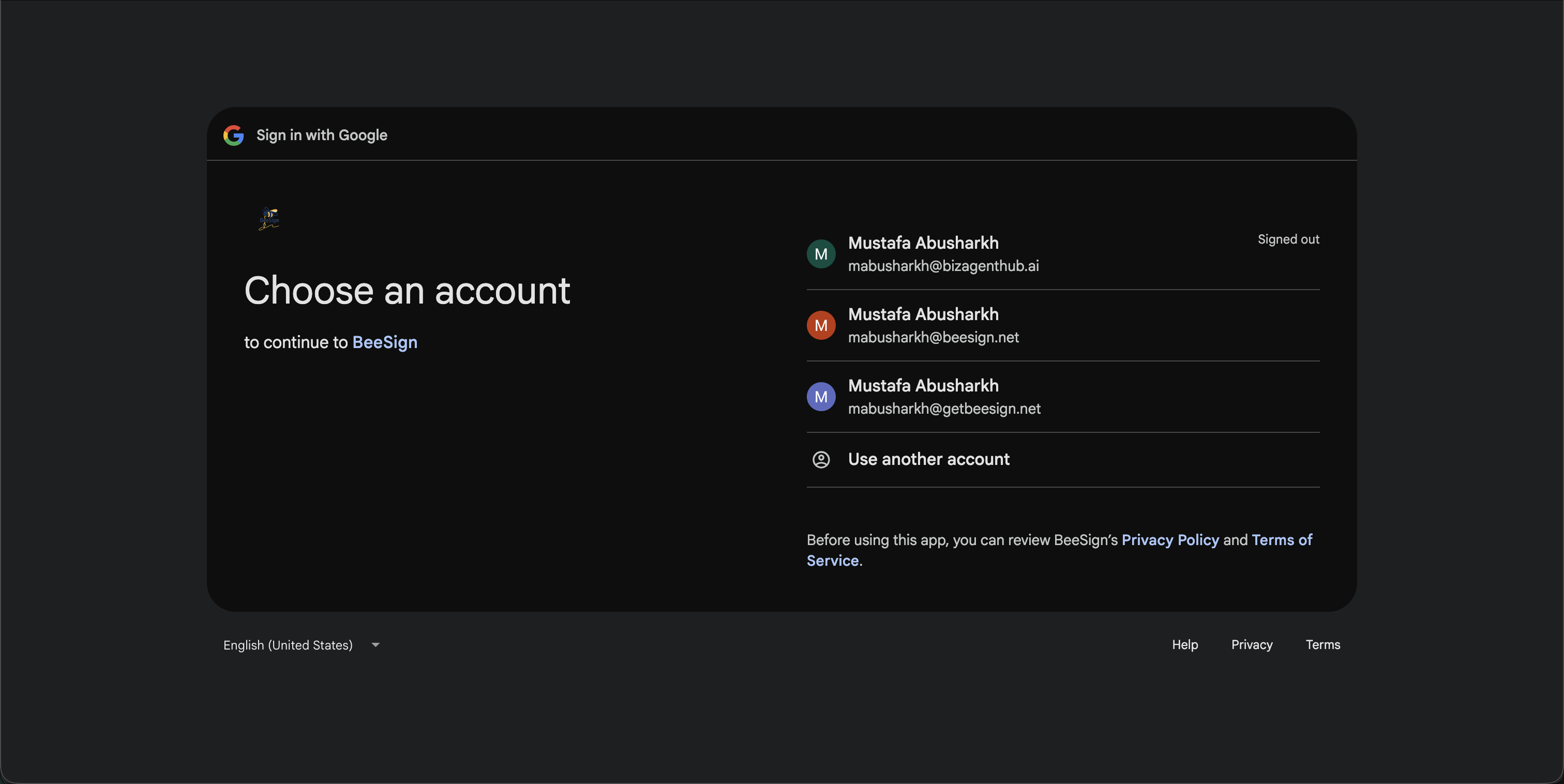
BeeSign only requests access to the file you're opening, so you stay in control of what's shared. Once you approve, you're taken straight into the BeeSign editor — no extra setup required.
Step 3: Assign Signers and Send for Signature
Here's the payoff: your Google Drive document is automatically uploaded into the BeeSign editor, rendered and ready to go. From here it's the full BeeSign experience — add your recipients on the right, then drag and drop signature, initials, text, date, and checkbox fields onto the document exactly where each signer needs to fill them in.
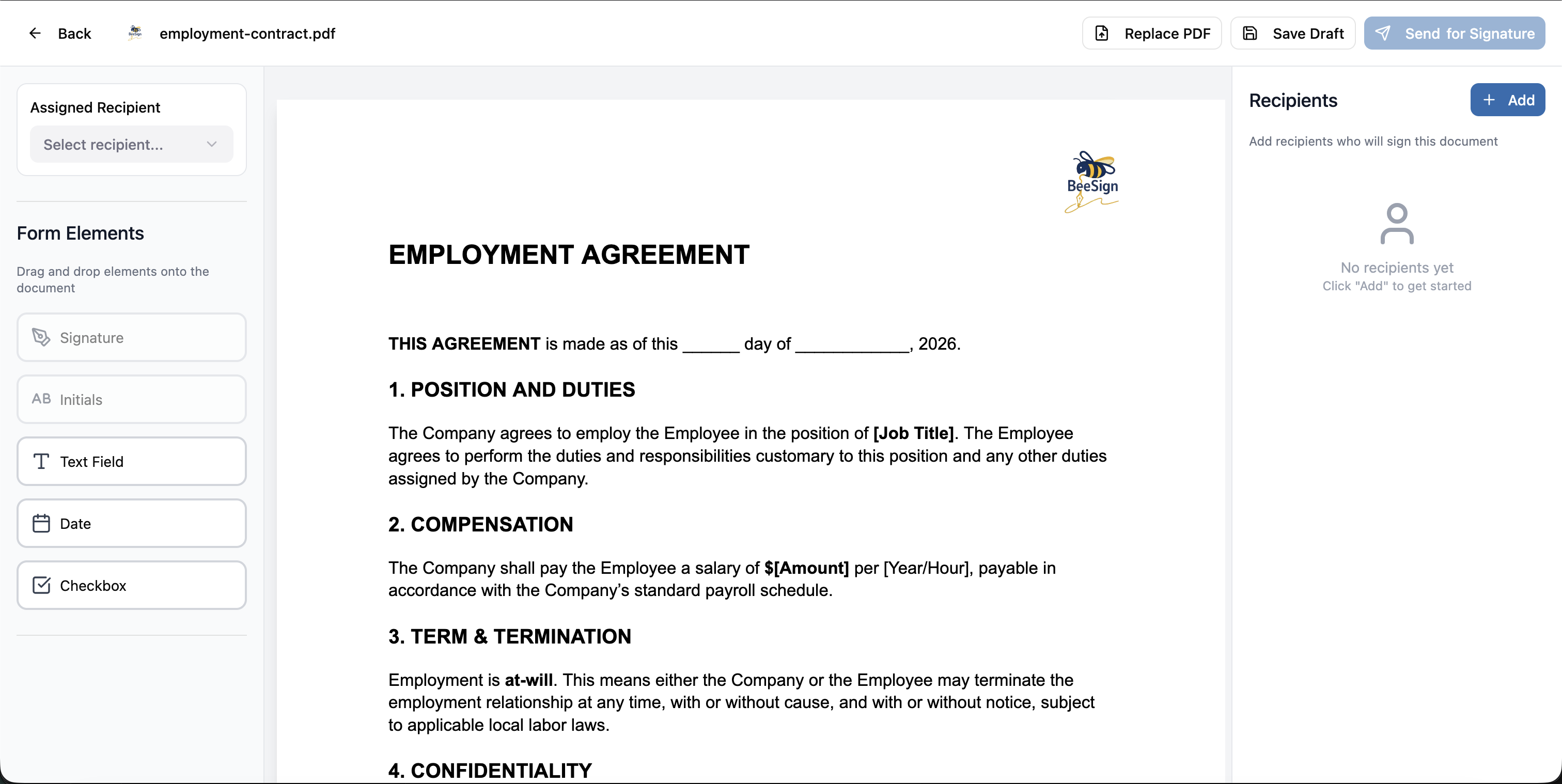
When everything's in place, click "Send for Signature". Your recipients receive an email, sign from any device, and you get a completed, legally binding document with a full audit trail — just like any other BeeSign workflow.
Why Sign Straight from Drive?
- ✓No download-and-re-upload — the file moves from Drive to BeeSign in one click, so you skip the busywork.
- ✓Your documents stay where they live — keep working out of Google Drive and reach for BeeSign only when it's time to sign.
- ✓Secure Google SSO — sign in with the Google account you already trust, and grant access only to the file you're signing.
- ✓The full BeeSign toolkit — recipients, drag-and-drop fields, identity verification, and audit certificates all work exactly as they do for uploaded files.
That's the whole flow: open with BeeSign, sign in with Google, and send for signature. If your team runs on Google Workspace, the BeeSign integration turns "get this signed" into a three-click task.
Ready to try it? Install BeeSign from the Google Workspace Marketplace, open your next contract straight from Drive, and send it for signature in minutes.
Ready to transform your workflow?
Start using BeeSign today and experience the future of document signing