BeeSign for HubSpot: Send Documents for Signature Without Leaving the CRM
Our HubSpot app puts BeeSign right inside the contact record. Pick a template, send it for signature in two clicks, and watch every event — sent, viewed, signed, completed — without switching tabs. Here’s how it works, how teams are attributed, and how it stays secure.
Mustafa Abusharkh

If HubSpot is where your deals live, that's where your contracts should be sent from. Until now, getting an offer letter or an NDA signed meant leaving the contact record, opening another tab, re-typing a name and an email that HubSpot already knows, and then coming back later to guess whether anything had been signed. The BeeSign app for HubSpot closes that loop: pick one of your existing BeeSign templates, send it to the contact you're already looking at, and watch every signature event land on the record — sent, viewed, signed, completed — without ever switching tabs.
🎥 Watch the full walkthrough — sending and tracking a document from a HubSpot contact record.
What the App Adds to Your CRM
Once installed, every contact record gets a BeeSign Documents tab. It does two things, both of which used to require a round trip to another app:
- ✓Send a template for signature — the contact on the record is filled in as the signer automatically, so sending is a template choice and a click.
- ✓See the full signing history — every document your workspace has ever sent to that person, with its current status and last activity date.
Step 1: Install BeeSign in Your HubSpot Account
Installation is standard HubSpot OAuth: you approve the app for your portal, HubSpot hands us an authorization grant, and you land back on a BeeSign page confirming the install. The permission the app asks for is deliberately narrow — read access to contacts, and nothing else. BeeSign never writes to your CRM records, never touches deals or companies, and cannot see anything beyond the contact you're sending to.
Step 2: Connect Your BeeSign Workspace
Installing the app tells HubSpot about BeeSign; the second step tells BeeSign which workspace this portal belongs to. In HubSpot, go to Settings → Integrations → Connected Apps → BeeSign, then paste an API key generated from your BeeSign account.
Here's the part worth knowing: that key is used exactly once and then discarded. We resolve it to the workspace it belongs to, store the resulting workspace link, and throw the key away — it is never written to our database and never ships inside the HubSpot app bundle. The settings page shows a green Connected badge when the link is live, along with who connected it, and a Disconnect button that severs the link without uninstalling the app.
Step 3: Send a Document Straight from the Contact Record
Open any contact, click Send document, and pick a template. The contact's name and email are already filled in as the signer — they came from the record you're standing on — and any template variables come pre-populated with their defaults so you only edit what actually changes.
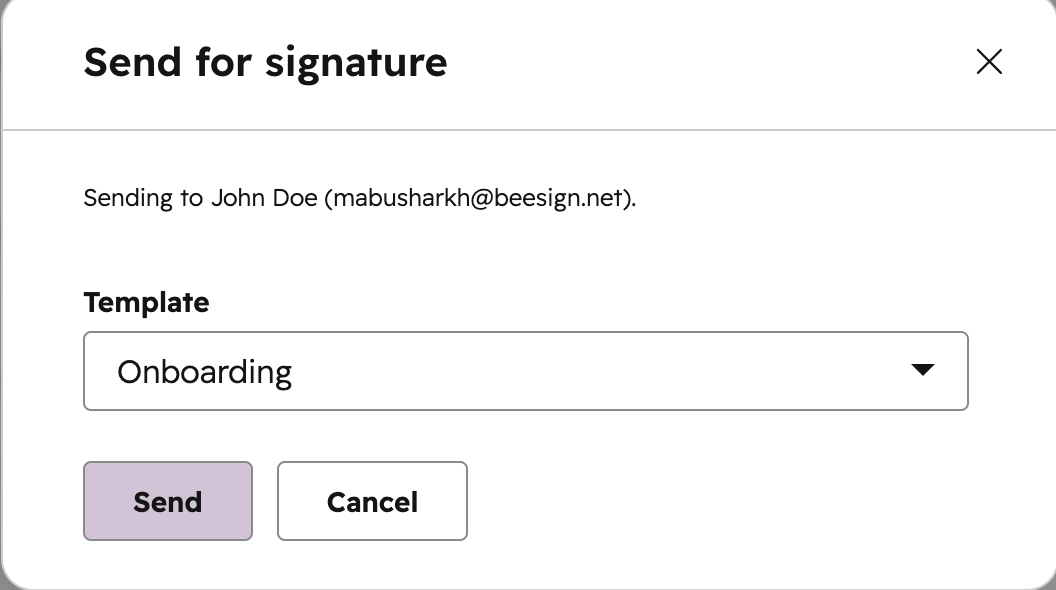
Click Send and the document goes out through the same BeeSign pipeline as everything else — the same branded emails, the same identity verification options, the same audit certificate at the end. A template that fans out to multiple documents sends all of them. Nothing about the resulting signature is second-class just because it started in HubSpot.
Step 4: Watch the Status Without Chasing Anyone
The Documents tab lists everything your workspace has sent to that contact, newest first, with the status of their signature on each one: Sent, Viewed, Signed, Approved, Completed, or Declined.
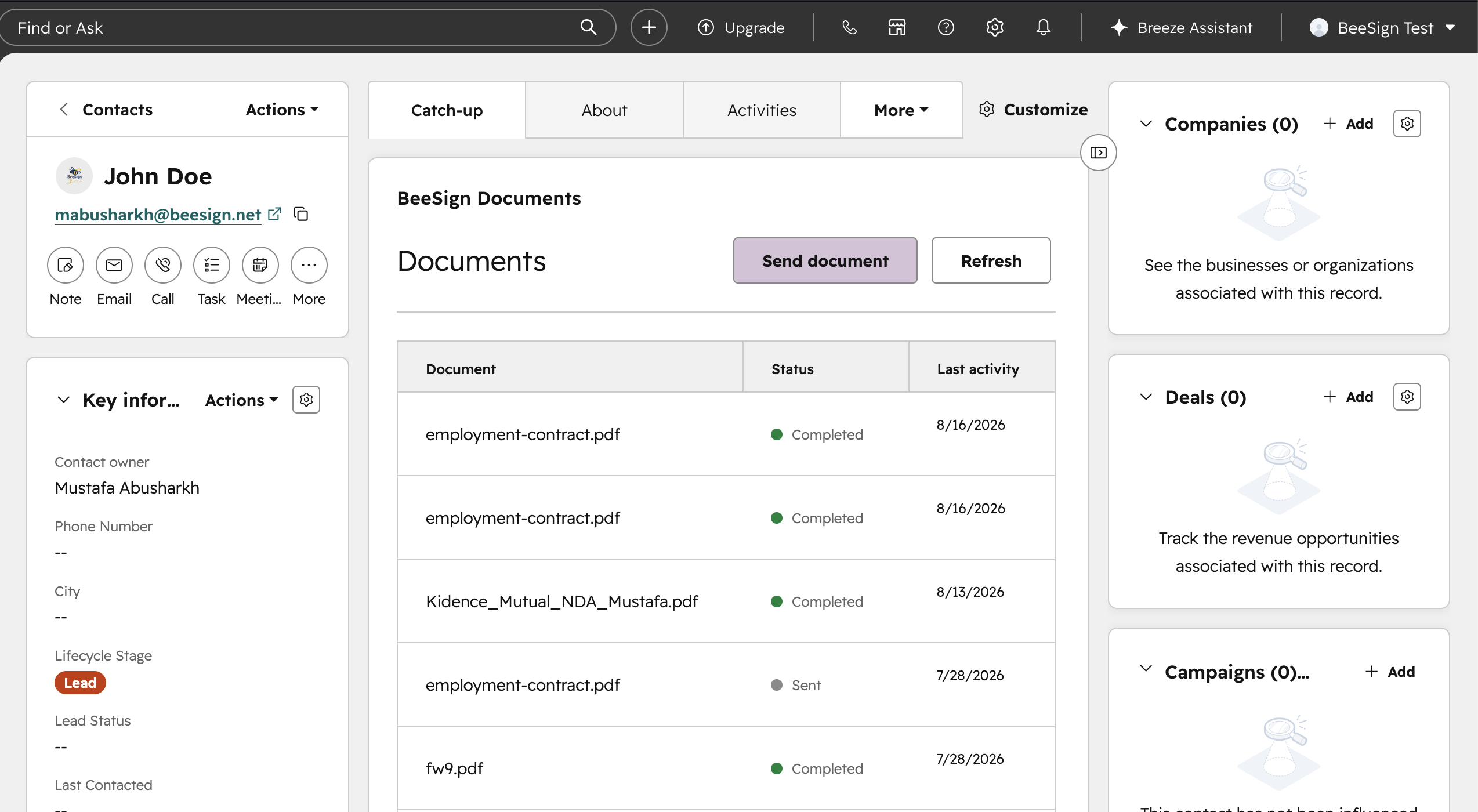
Those statuses are read from the document itself every time the card renders, not from a cached copy that can drift. That design choice costs a little latency and buys something more valuable: the card can never tell you a contract is unsigned after it has been signed. Any document in the list can be opened through a short-lived signed link, so the completed PDF is one click away when someone asks for it.
Your Team, Attributed Correctly
Connecting an organization workspace connects the whole team at once — but every HubSpot user still sends under their own BeeSign seat. We match the HubSpot user to their BeeSign account by email at send time, so the audit trail names the person who actually clicked send, not whoever happened to set the integration up.
If a HubSpot user has no BeeSign seat, the card asks them to request one rather than quietly sending on someone else's behalf. That refusal is intentional: an audit trail that names the wrong sender is worse than one that doesn't exist, and each member's documents stay in their own space rather than pooling into a shared inbox.
How We Kept It Secure
A CRM integration sits between two systems full of sensitive data, so it's worth being explicit about how this one is built:
- ✓No credentials in the app. The HubSpot card carries no API key at all. HubSpot cryptographically signs every request it forwards to us, and BeeSign verifies that signature — including a five-minute freshness window that bounds replay — before it does anything else.
- ✓Every request is workspace-scoped. Templates, history, and downloads are all resolved under the linked workspace's own storage prefix, so no request from one portal can reach another customer's documents — even with a valid signature.
- ✓Contact emails are never stored in the clear. The index that answers "which documents went to this person" is keyed by a salted cryptographic hash of the address, scoped per tenant. It can confirm a match; it cannot be read back into a mailing list.
- ✓Uninstalling really disconnects. Removing the app in HubSpot fires a lifecycle event that clears the stored install on our side — no orphaned tokens left behind. Your documents, of course, stay in BeeSign.
All of it runs on the same infrastructure covered by our SOC 2 Type 1 report, with the same encryption, access controls, and audit logging as the rest of the platform.
What's Next
This first release is focused on contacts, because that's where a signature request almost always starts. Sending from deal records and writing completion status back onto CRM properties are the two things we hear about most, and both are on the roadmap. If there's a HubSpot workflow you want BeeSign to fit into, tell us — customer requests are what set the order.
Getting the Integration
The app is live and installable today. While our public App Marketplace listing works its way through review, we're onboarding accounts with a direct install link — get in touch and we'll send it over, along with a hand from us on the setup if you want one.
Install, paste an API key once, and the next contract you need signed is two clicks away from the record you were already looking at.
Ready to transform your workflow?
Start using BeeSign today and experience the future of document signing