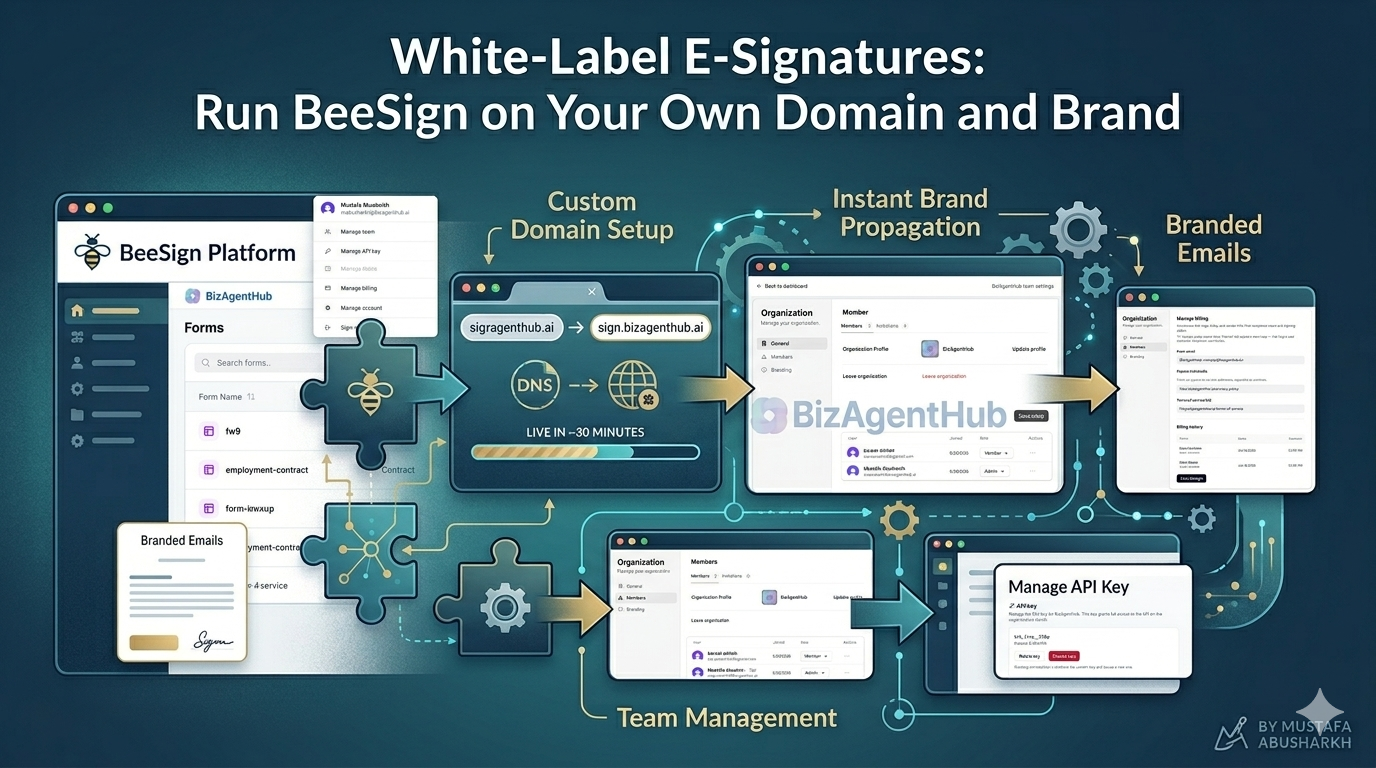
Manage Contacts in BeeSign: A Built-In Address Book for Everyone You Send To
BeeSign now has a Contacts tab. Everyone you send a document to is saved automatically, each contact shows every document your workspace has sent them, and the recipient field autocompletes from your address book. Here’s how to create, edit, and use contacts, and how sharing works for teams.
Mustafa Abusharkh
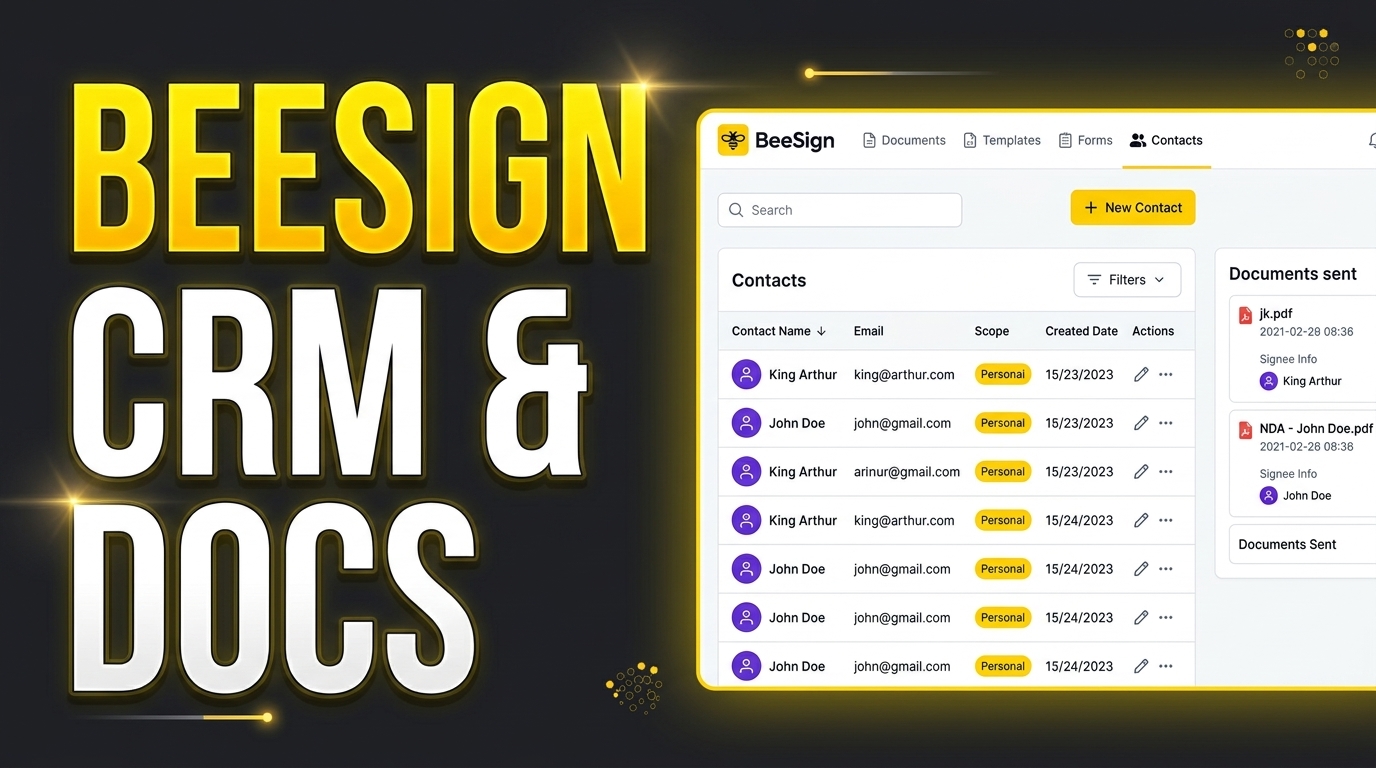
Most of the people you send documents to, you'll send to again: the client who renews every year, the contractor who signs a new statement of work each quarter, the employee whose paperwork never quite ends. Until now, BeeSign made you retype their name and email every time, and answering "what have we sent this person?" meant scrolling through your documents list. Contacts fixes both. It's a lightweight address book built into BeeSign, and it fills itself in as you work.
🎥 Watch the full walkthrough: creating a contact, viewing their history, and sending them a document.
What Contacts Gives You
- ✓An address book that builds itself. Every recipient you send a document to is saved as a contact automatically, so your list is already populated from the documents you've sent.
- ✓A document history for each person. Open a contact and you see every document your workspace has sent to that address, newest first.
- ✓Faster sending. When you add a recipient to a new document, BeeSign suggests matching contacts as you type, so you pick a name instead of typing an email address.
Step 1: Open the Contacts Tab
Contacts sits on your dashboard next to Documents, Templates, and Forms. The list shows each contact's name, email, scope, and the date it was created. Search by name or email, sort by any column, and page through larger lists.
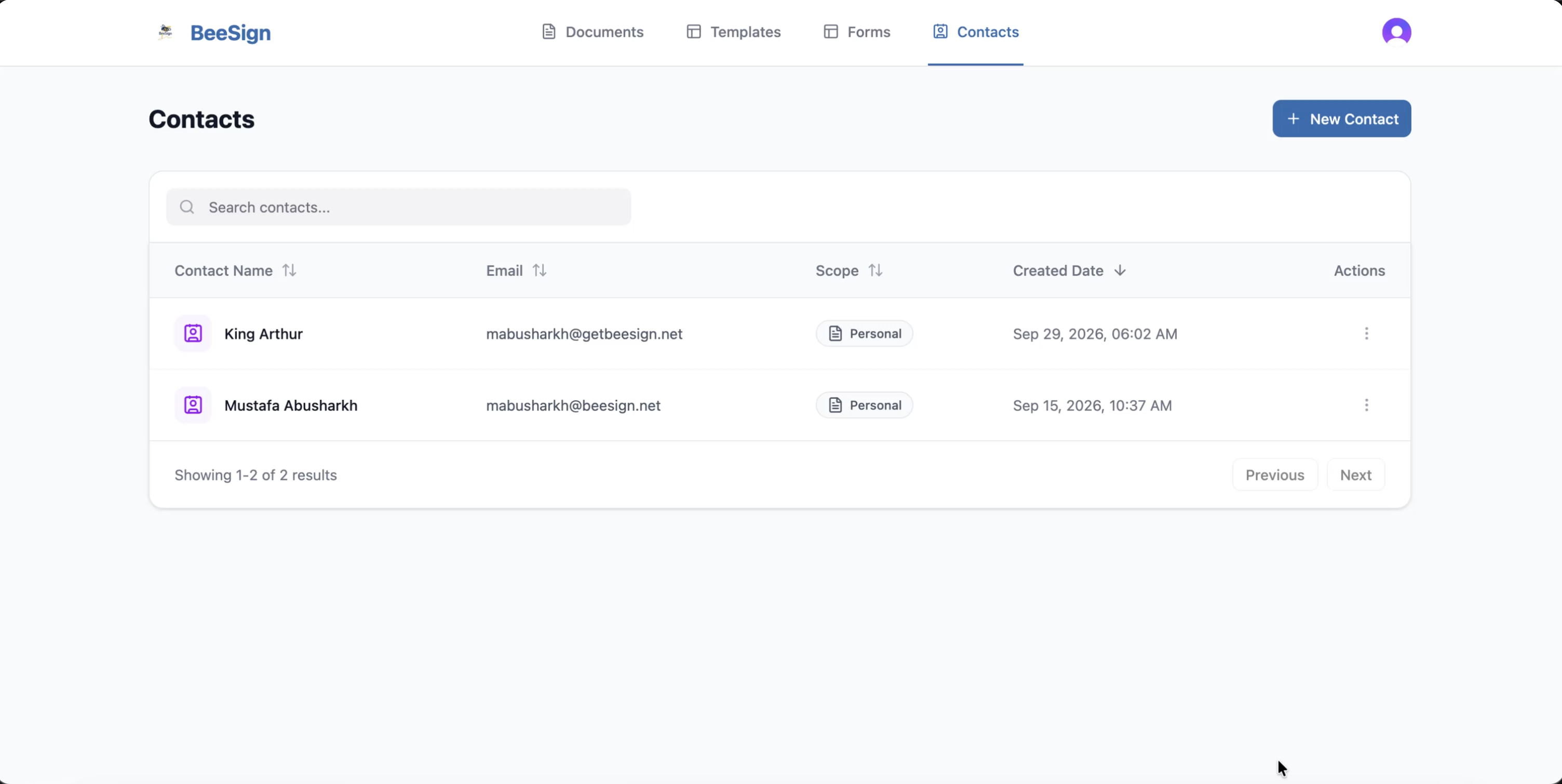
Step 2: Add a Contact
You don't have to wait for a send to add someone. Click New Contact and fill in their email and name, plus optional company, phone, and notes. Notes are a good place for context your team will want later, such as "new hire, starts Monday" or "send renewals to legal first." Click Create Contact and you're done.
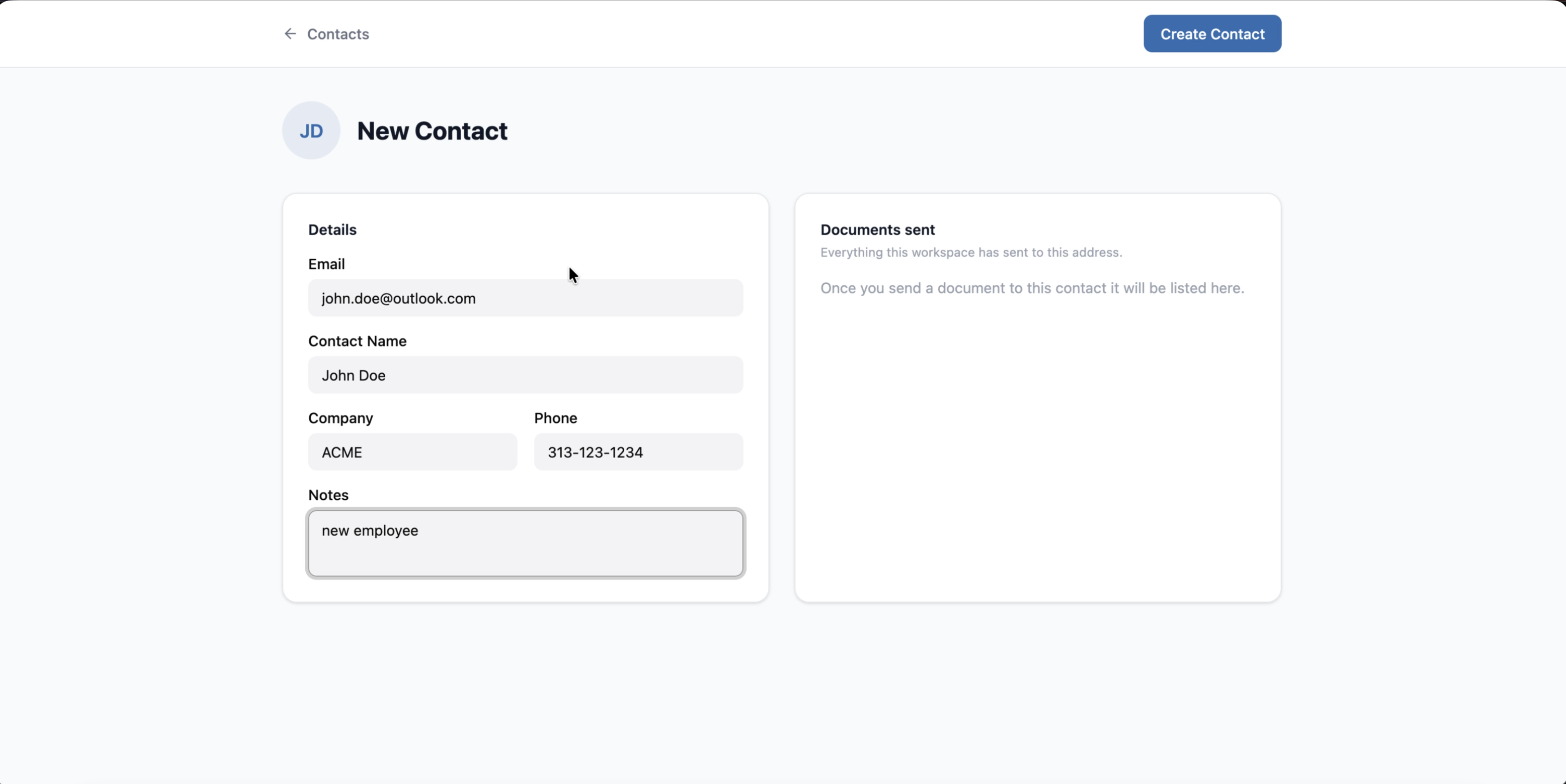
Step 3: See Everything You've Sent Them
Click any contact to open their record. On the left you can edit their details and click Save Changes, or remove them with Delete. On the right, Documents sent lists everything your workspace has sent to that address, with the date sent and the role they had on it, such as signer. Under the record's name you'll also see when you last sent them something.
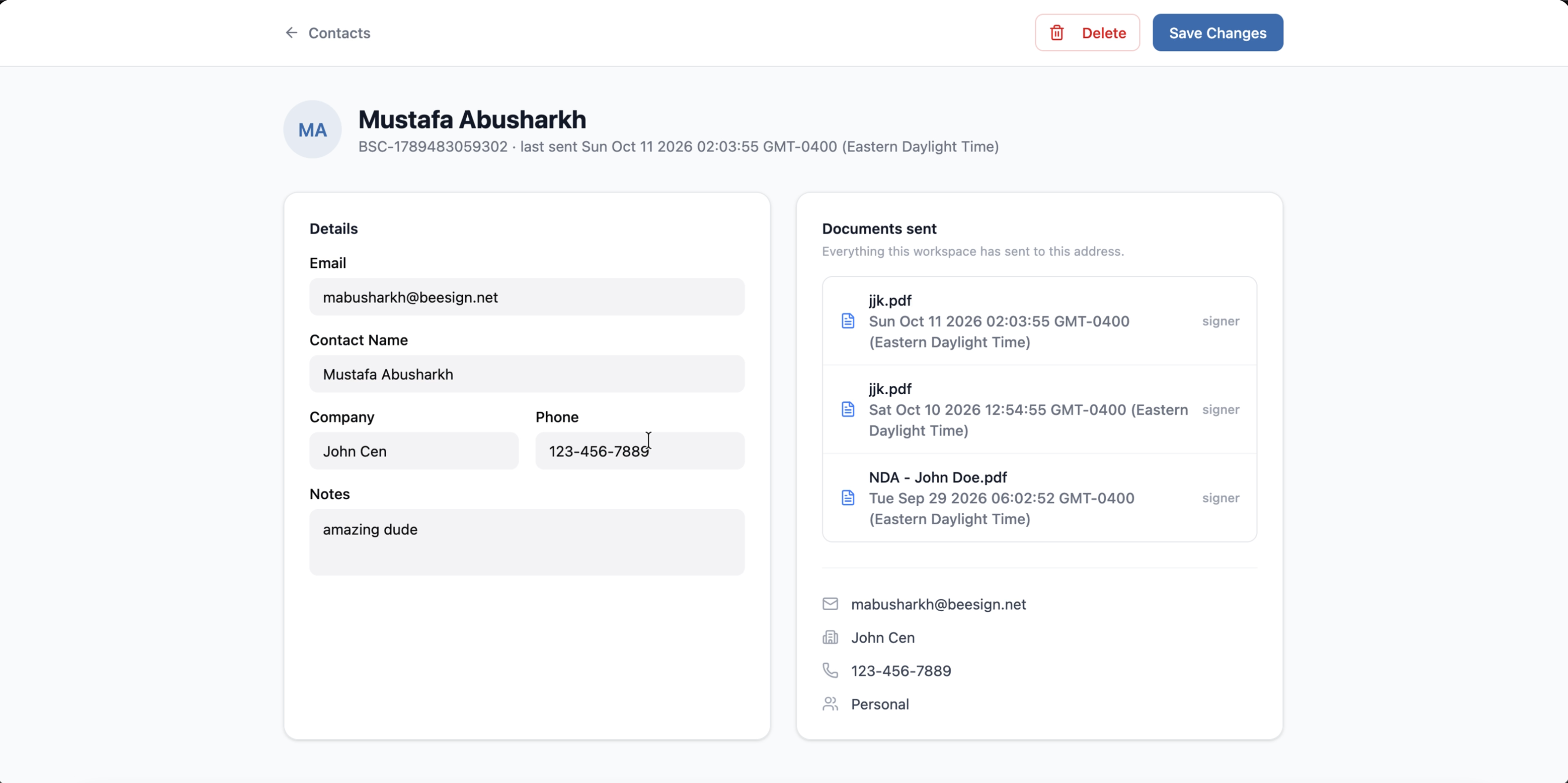
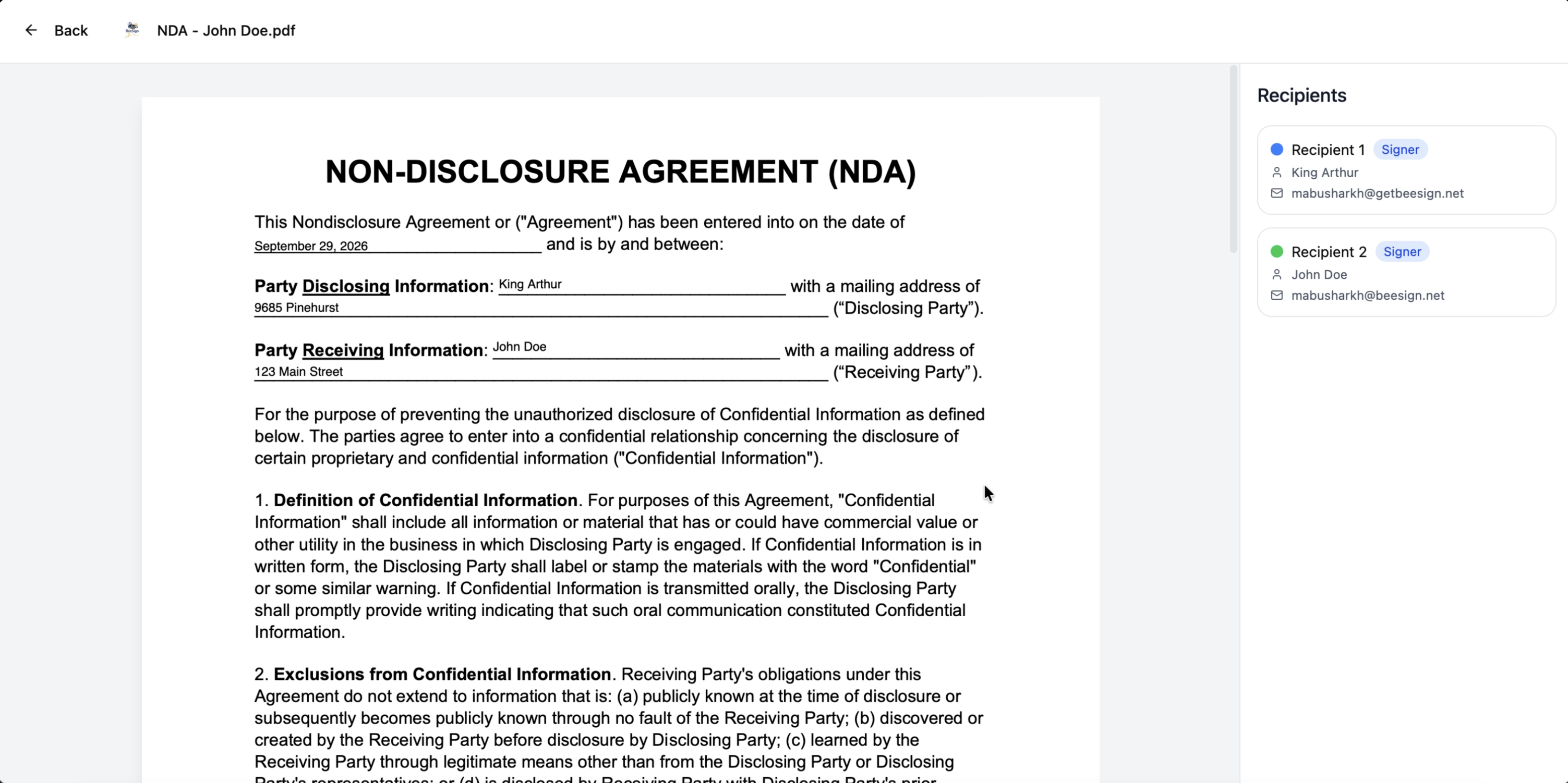
Click any document in the history to open it. If a client asks for "that NDA from September," you can find it from their contact record instead of searching your whole documents list.
Step 4: Send to a Contact in a Few Keystrokes
When you create a new document and add a recipient, start typing in the name field. BeeSign suggests contacts that match the name, email, or company you've typed. Use the arrow keys and press Enter, or click, and the name and email fill in for you. Anyone already on the document is left out of the suggestions, so you can't add the same person twice by accident.
Sending also keeps contacts current. If a recipient isn't in your address book yet, they're added. If they are, their last-sent date is updated and the new document appears in their history. Saving contacts never holds up a send: if the address book can't be updated for any reason, the document still goes out.
Personal and Organization Contacts
Every contact has a scope, shown in its own column in the list:
- ✓Personal contacts belong to you. Contacts saved automatically when you send a document are personal, and on an individual account every contact is personal.
- ✓Organization contacts are a shared address book that every member of your team can see and send to. Only organization admins can create, edit, or delete them, so the shared list stays accurate.
A contact's document history covers the whole workspace, not just your own sends. When you open a contact, you see what your team has sent that person, which helps when you're taking over an account from a colleague.
Getting Started
Contacts is available now, with nothing to set up. Open the Contacts tab on your dashboard, add the people you work with most, and let every new send fill in the rest. Pair it with templates and a repeat send becomes: pick the template, pick the contact, click send.
Ready to transform your workflow?
Start using BeeSign today and experience the future of document signing