Three Ways to Capture Mobile E-Signatures Without Compliance Risk
Compare the three mobile e-signature approaches—OS markup, dedicated apps, and embedded APIs—and see which features and verifications teams need to stay...
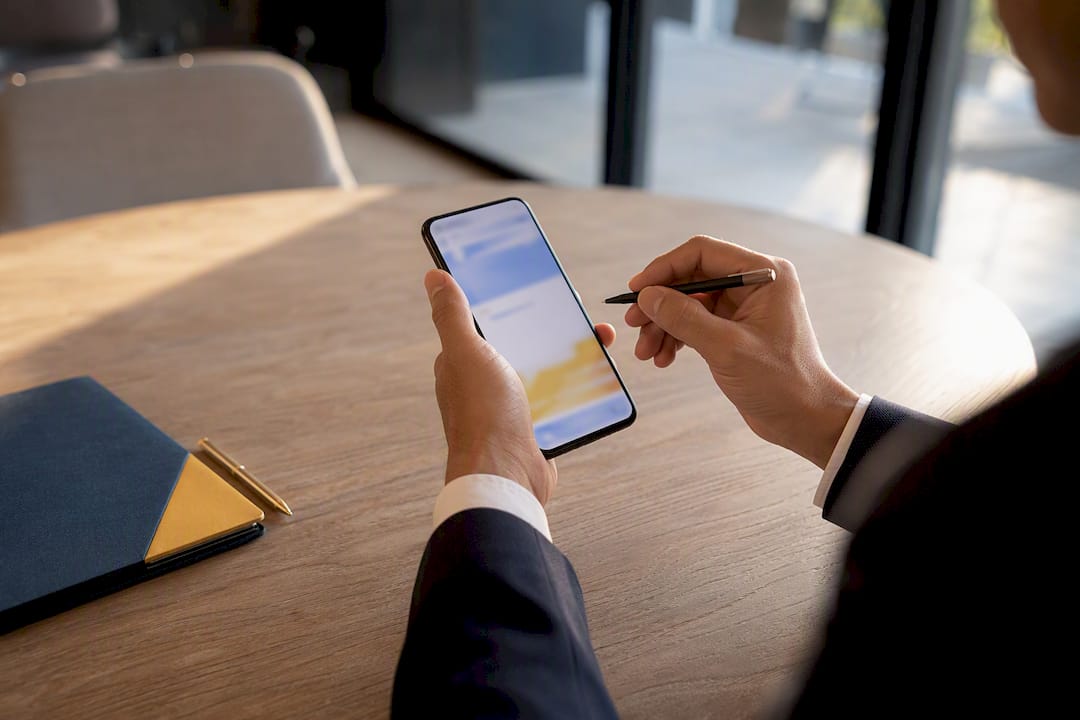
A mobile e-signature is a legally binding signature you create and apply from a smartphone or tablet instead of a desk. For casual, low-stakes forms, the built-in markup tool on your phone is fine. For anything tied to a contract, HR file, or client agreement, use a dedicated mobile signing app like Beesign that generates an audit trail and meets ESIGN and UETA standards.
TL;DR:
- Dedicated mobile e-signature apps are recommended for legally binding documents due to their audit trail, identity verification, and compliance with ESIGN and UETA standards.
- Built-in OS markup tools are suitable only for low-risk, casual uses because they lack audit trails and identity verification.
- High-volume or automated signing workflows require embedded signing via API to integrate seamlessly into existing business systems.
- Strong security measures like encryption, multi-factor authentication, and proper device locking are essential for maintaining compliance and protecting sensitive data.
- Conducting a test sign on your phone can reveal usability issues like field misplacement, helping ensure a smooth signing experience before deploying to clients.
Table of Contents
- Choosing How to Sign on Mobile: OS Tools, Apps, or Embedded Workflows
- How to Create and Send an E-Signature on iOS and Android
- What Makes a Mobile E-Signature Legally Enforceable
- Mobile Features Worth Checking Before You Commit
- Handling Offline Signing, Kiosk Mode, and Multilingual Signers
- A Buyer’s Checklist for Mobile E-Signature Software
- How Beesign Handles Mobile Signing and Compliance
- Try Beesign for Mobile Signing
- Mobile-First vs. Desktop-First Signing: What Actually Matters
- Sources
Choosing How to Sign on Mobile: OS Tools, Apps, or Embedded Workflows
Three distinct paths exist for getting a signature onto a document from a phone, and picking the wrong one usually shows up later as a compliance headache rather than an immediate problem.
The first option is built-in operating system markup. Both iOS and Android let you draw a signature directly onto a PDF using Markup or Google’s PDF viewer, with no app download required. It’s fast, but it produces zero audit trail, no identity verification, and no record of consent beyond the file itself. Fine for initialing your kid’s field trip form. Risky for a lease.
The second is a dedicated mobile e-signature app. These are purpose built: they store templates, manage signer roles, timestamp every action, and often work offline. This is the category most individuals and small businesses land in because it balances speed with legal defensibility.
The third is embedded signing through an API, where the signing experience lives inside another app or portal (a real estate CRM, an HR onboarding tool) rather than a standalone signing app. This is the right fit once your document volume or automation needs to outgrow manual sending.
- Occasional signer: OS markup tools handle single, low-risk documents.
- Small business or team: a dedicated mobile e-signature app covers contracts, templates, and multiple signers.
- High-volume or integrated workflow: embedded signing via API connects signature capture directly into existing business systems.
How to Create and Send an E-Signature on iOS and Android
Before you sign anything, confirm three things: the file is a PDF or another format your app accepts, the app has camera and storage permissions enabled, and you know whether the document requires stronger identity verification than a basic click-to-sign.
- Open the document in your mobile e-signature app rather than your phone’s default file viewer, so signature fields are recognized and mapped correctly.
- Locate the signature field. Most apps highlight required fields automatically; tap the first one to begin.
- Create your signature. Draw it with your finger or stylus, type it and let the app render a script font, or upload a photo of your handwritten signature.
- Apply it to every required field, along with initials, date fields, or checkboxes the sender configured.
- Finalize and submit. The app locks the document, generates a completion certificate, and returns a signed copy to all parties. This basic sequence, opening the file, locating fields, applying a signature, and finalizing, holds true across iOS, Android, and desktop platforms, which is why it’s worth learning once and reusing everywhere.
If you’re the one requesting a signature rather than providing one, the flow runs in reverse: attach the document from your phone’s storage or cloud drive, assign signer roles and signing order if multiple people are involved, choose an authentication method (email link, access code, or ID verification), and send. You can find a fuller walkthrough of this side of the process in this guide to sending electronic signatures.
Once everyone has signed, the finished document and its audit trail typically land in the app’s document library and get emailed to every participant automatically.
Pro Tip: Before sending a document for signature on mobile, preview it on your own phone screen first. Fields that look perfectly placed on a desktop editor sometimes shift or overlap on smaller screens, and catching that before your client does save an awkward resend.
What Makes a Mobile E-Signature Legally Enforceable
A signature captured on a phone carries the same legal weight as one signed on paper, provided it meets the standards set by the ESIGN Act and UETA. Both frameworks care about three things: the signer’s intent to sign, clear consent to do business electronically, and a retained record that can be produced later if the signature is ever challenged.
That retained record is the audit trail, and it needs to contain more than a signature image. A defensible mobile signing audit trail logs timestamps, device and IP metadata, and signer authentication details for every step, from document delivery to final signature. Without that metadata, you have a picture of a signature, not proof of who signed and when.
Security on the device side matters just as much as the legal framework. A mobile e-signature app should offer:
- Encryption of documents both at rest and in transit
- Multi factor authentication for account access
- Device level locking or biometric login for the app itself
- Secure or bring your own cloud (BYOC) storage so signed records stay within your organization’s own infrastructure
Identity verification should scale with risk. A newsletter opt-in doesn’t need the same rigor as a mortgage addendum. Low-stakes mobile signing often needs nothing more than an access code sent by SMS, while regulated documents, HR files, financial agreements, medical consent forms, often call for government ID capture paired with a biometric face match before the signer ever sees the document.
Businesses that handle sensitive personal data through their signing workflow also carry obligations under federal privacy frameworks like the Gramm-Leach-Bliley Act, which governs how financial and personal information gets stored and protected. Choosing a mobile signing tool with strong encryption and audit logging isn’t just good practice; for regulated businesses, it’s a compliance requirement.
Mobile Features Worth Checking Before You Commit
Not every e-signature app built a mobile experience from the ground up, and it shows the moment you try to sign something with your thumb on a five-inch screen. Independent testing consistently finds that responsive design and visible progress indicators cut signature completion time noticeably compared to apps that just shrink a desktop layout.
Look for these categories of features when evaluating an app or platform:
Everyday mobile functionality
- Reusable templates for documents you send repeatedly
- Defined signer roles when a document needs multiple approvals
- In-person or kiosk mode for collecting signatures on a handed-over device
- Offline signing with automatic sync once you’re back online
- Push and email notifications so you know the moment a document is signed
Security and compliance
- Encryption at rest and in transit
- Full audit trails tied to every signature
- Tiered identity verification, from access codes to government ID and biometric matching
- BYOC or secure cloud storage options for regulated industries
Developer and enterprise capability
- A REST API for automating document generation and signature requests
- Webhooks that trigger downstream actions the moment a signature completes
- Single sign-on (SSO) for teams managing dozens of signers
- White-label branding so the signing experience carries your company’s name, not the software vendor’s
User experience details
- Large, obviously tappable signature and initial fields
- Camera-based ID capture that doesn’t require a separate app
- A signing flow that adapts to portrait and landscape orientation without breaking the layout
Pro Tip: If you’re testing a new mobile e-signature app, send yourself a test document with three or four signature fields and complete it entirely on your phone before rolling it out to clients. Anything clunky about the mobile signing experience will surface in that first test.
Handling Offline Signing, Kiosk Mode, and Multilingual Signers
Field teams, event staff, and front-desk workers run into signing scenarios that a purely online tool can’t handle gracefully, and planning for them ahead of time avoids a scramble later.
Kiosk mode turns a single tablet into a shared signing station: a signer walks up, signs, and hands the device back without needing their own account or login. The best setups lock the device to the signing app only, so a signer can’t wander into settings or other apps mid-signature.
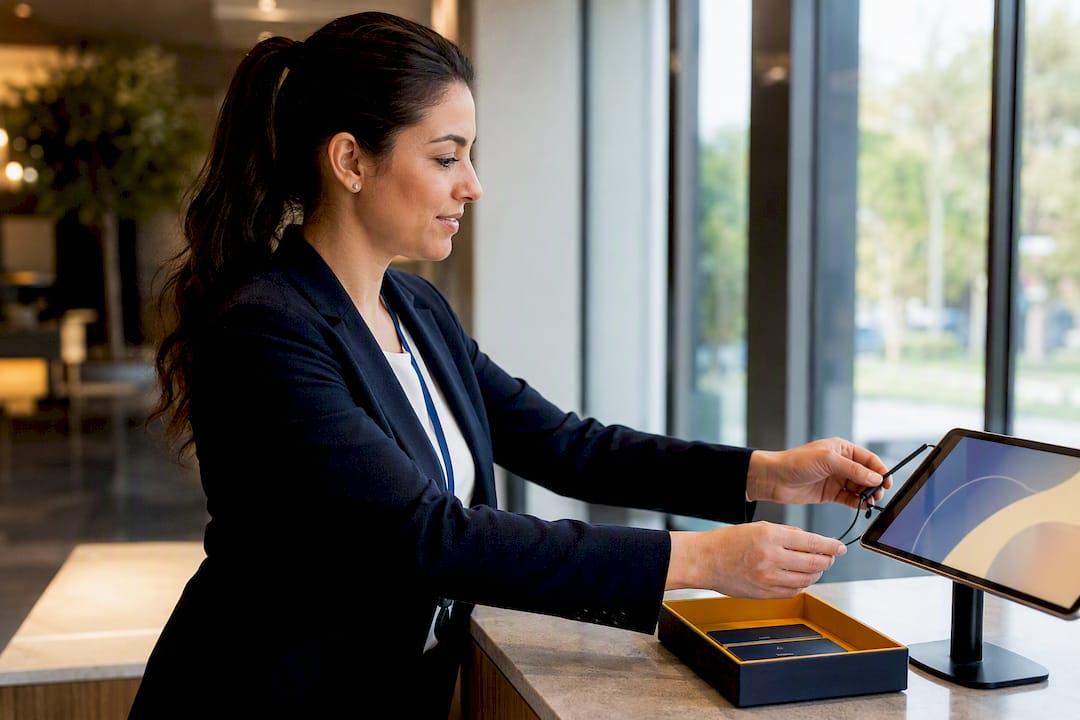
Offline signing solves a related problem, spotty connectivity at trade shows, rural job sites, or basements with no signal. Signatures cache locally on the device and sync to the cloud the moment connectivity returns, preserving the same audit trail integrity as an online signature.
A few operational habits reduce friction:
- Test kiosk devices for battery life and screen brightness before a full day of events.
- Confirm your app’s multilingual settings handle date formats, time zones, and notification language correctly. A signer in one region seeing a due date rendered in the wrong day-month order is a common and avoidable mistake.
- Wipe cached local data promptly after a sync to reduce the window where sensitive documents sit unprotected on a shared device.
A Buyer’s Checklist for Mobile E-Signature Software
Matching the tool to your actual signing volume and risk level saves money and prevents you from either overpaying for enterprise features you’ll never touch or under-provisioning for compliance you actually need.
- Estimate your signing frequency. A handful of documents a month rarely justifies an enterprise contract. Dozens a week across a small team usually does.
- Set your identity assurance level. Low-risk internal forms need less than client contracts or regulated paperwork. Decide this before you shop, not after a compliance review flags it.
- List your compliance requirements. HIPAA, GLBA, or industry-specific rules narrow your options fast, since not every signing app supports the audit depth those frameworks expect.
- Map your integration needs. If signatures need to flow into a CRM, cloud storage, or document management system automatically, an API becomes a requirement, not a nice extra.
- Set a realistic budget, factoring in that white-label branding or bring-your-own-cloud storage often carries a setup cost beyond the base subscription.
Before signing a contract with any vendor, ask directly where signed documents are stored, whether data can be exported in bulk, how kiosk and offline modes behave during an outage, and what format the audit trail export takes. A vendor that hesitates on any of those questions is telling you something. For a deeper breakdown of these criteria, see this guide to choosing a mobile signature app for business.
Pro Tip: Ask a prospective vendor to show you an actual audit trail export, not a marketing screenshot. The real document tells you exactly what evidence you’d have in hand if a signature were ever disputed.
How Beesign Handles Mobile Signing and Compliance
Beesign builds its mobile experience around the exact checklist professionals need: fillable fields sized for touchscreens, reusable templates, and defined signer roles that carry through from desktop to phone without losing formatting.
On identity, Beesign supports layered verification, from simple access codes for routine documents up to government ID capture paired with biometric face matching for higher-risk agreements, giving businesses the flexibility to match verification effort to actual risk rather than applying one setting to every document.
Every signature Beesign captures generates a complete audit trail with timestamps and device metadata, plus blockchain timestamp proof for an added layer of tamper evidence. That structure aligns directly with what ESIGN and UETA expect from a defensible electronic record.
For organizations with strict data residency or branding needs, Beesign’s bring-your-own-cloud storage keeps signed documents inside the organization’s own infrastructure, and its REST API lets development teams automate signature requests as part of a larger workflow rather than a manual, one-off task.
Try Beesign for Mobile Signing
Everything covered here, templates, signer roles, tiered identity verification, audit trails, offline and kiosk support, is built directly into Beesign rather than bolted on as an afterthought. That matters if you’ve ever tried to force a desktop-first e-signature tool to behave on a five-inch screen and watched a client abandon a contract halfway through.

If your signature volume runs through sales, Beesign’s solutions for sales and business teams are built to close agreements faster without your reps ever opening a laptop. Organizations that need the signing experience to carry their own branding, custom domain and all, can look at Beesign’s white-label and BYOC options, which keep signed data inside your own cloud infrastructure for HIPAA, eIDAS, or GDPR compliance.
Start with the seven-day free trial on the Beesign homepage, upload a real document you need signed this week, and send it to yourself first. You’ll know within five minutes whether the mobile signing flow fits how your team actually works.
Mobile-First vs. Desktop-First Signing: What Actually Matters
Mobile-first signing wins decisively for anything happening in the field: contractor sign-offs, delivery confirmations, event registrations. The signer is standing right there, and forcing them toward a laptop kills the transaction.
Desktop still earns its place for dense, multi-page contracts where someone genuinely needs to read every clause before committing. Nobody reviews a twelve-page lease carefully on a phone, and pretending otherwise just produces signers who scroll and tap without reading.
Train signers once, on your simplest document, before sending anything complex. And treat the device itself as part of your security posture. Lock screens and app level authentication aren’t optional extras. They’re the last line of defense once a document leaves your hands.
— Mustafa Abusharkh
Sources
- Creating an eSignature on iOS, Android, and Desktop | IT@UMN
- The 6 best electronic signature apps in 2026
- Gramm-Leach-Bliley Act guidance (FTC)
Recommended
Ready to transform your workflow?
Start using BeeSign today and experience the future of document signing