Bulk Send 500 E-Signatures for Teams: CSV Templates and Controls
Run CSV-driven bulk e-signature campaigns for teams and regulated organizations. Learn template setup, CSV formatting, authentication, monitoring, and...

Yes, you can send e-signature requests to hundreds of people at once, and you don’t need to attach the same document 200 times to do it. The method is a parent template paired with a CSV recipient list, which turns one master document into dozens or hundreds of independent, private child agreements. Each recipient sees only their own copy. You just need bulk send enabled on your account tier before you start.
TL;DR:
- Manual entry for bulk signatures is limited to around 50 agreements per batch on standard plans, whereas CSV uploads can generate up to 1,000 on enterprise tiers.
- CSV files must be carefully formatted in UTF-8, with consistent headers, date formats, and phone number formats, and should be tested with small batches first.
- Each recipient’s document inherits the template’s structure but uses individual CSV data for personalization, including custom fields and conditional content.
- Authentication methods should match document sensitivity; options range from email and password to biometric verification, with audit trails required for legal compliance.
- Proper access control and testing are critical to prevent silent errors, such as sending contracts to the wrong recipients, which can escalate risks in high-volume campaigns.
Table of Contents
- How to Bulk Send E-Signatures Step by Step
- What Account Limits Should You Plan For?
- How Do You Format a CSV for Bulk Signature Requests?
- How Are Fields Applied to Each Recipient’s Document?
- What Authentication and Security Settings Matter at Scale?
- How Do You Track and Manage a Bulk Send After It’s Live?
- Why Do Bulk Sends Fail, and How Do You Fix Them Fast?
- How Beesign Handles Bulk Signature Requests at Scale
- Run Bulk E-Signature Campaigns Under Your Own Brand
- Where Bulk Sends Actually Break Down
- Sources
How to Bulk Send E-Signatures Step by Step
Bulk sending works because you’re not really sending one document to many people. You’re generating many separate documents from a single blueprint. Here’s how that process runs in most e-signature platforms, including Beesign.
- Create or select your parent template. This is the master document, the one that defines what every recipient will sign. Set the agreement name, the message recipients see in their inbox, the expiration window, and your reminder schedule here, since these settings apply globally to every child agreement generated from it.
- Choose how you’ll add recipients: manually or by CSV. Manual entry works fine for small batches, typically a handful of people you can type in by hand. The moment your list grows past a few dozen names, or you need different authentication types per person, CSV upload becomes the only practical option.
- Map your CSV columns to merge fields. Each column header in your spreadsheet should correspond to a field in the template, whether that’s a recipient’s name, email, phone number for SMS authentication, or a custom value like a contract ID or renewal date.
- Preview the fields before sending. Check that signature blocks, initial fields, and any form fields land in the right place on a sample document. This is the step people skip when they’re in a hurry, and it’s the one that causes the most support tickets afterward.
- Save the template, then send. Once the parent template and CSV are locked in, the platform confirms the batch, generates each child agreement, and dispatches them independently.
A few things separate a clean bulk send from a messy one:
- Manual entry generally supports far fewer recipients than CSV import, since Adobe Acrobat Sign caps manual input at up to 50 child agreements on Pro and Standard tiers, while CSV-driven sends on enterprise tiers scale far higher.
- CSV upload isn’t just about volume. It unlocks per-recipient personalization, including custom authentication methods, locale settings, and expiration dates that manual entry typically can’t support.
- Every child agreement generated this way is a fully independent, private contract, not a shared copy visible to other recipients, according to Adobe’s own documentation on how parent templates spawn child agreements.
If you’ve used templates before to send the same document to multiple people one at a time, bulk send is the natural next step, and the underlying template logic works the same way whether you’re sending five copies or five hundred.
What Account Limits Should You Plan For?
Before you build a 500 name list, check what your subscription tier actually allows. This is the step that trips up teams who assume every plan behaves the same way.
- Manual entry caps out fast. Standard and Pro tiers typically allow up to 50 child agreements when you type recipients in by hand, according to Adobe’s bulk send documentation.
- CSV upload scales much further. On enterprise-grade tiers, CSV-powered sends can generate up to 1,000 child agreements from a single parent template, per Adobe’s Send in Bulk overview.
- Recipients per child agreement have their own ceiling. CSV import can support up to 100 recipients on a single child agreement, while manual configuration typically limits you to one external signer per child.
- Bulk downloads aren’t unlimited either. When you retrieve completed agreements as a zip file, there may be practical size limits on download requests, which can affect large batches, which matters if your batch includes large PDFs or attachments.
- Administrator controls gate the feature entirely. On some accounts, bulk send and CSV import are restricted at the account or group level until an admin enables them.
Quick reference: manual entry tops out around 50 child agreements per send on standard tiers, while CSV-powered enterprise sends can reach up to 1,000 child agreements in a single batch.
Check your plan’s specifics before you commit a large recipient list to a template. Nothing stalls a campaign faster than discovering the cap mid-upload.
How Do You Format a CSV for Bulk Signature Requests?
A clean CSV is the difference between a bulk send that runs in minutes and one that bounces back with a dozen parsing errors. The rules here are straightforward, but they’re easy to overlook when you’re exporting a list from a CRM or spreadsheet in a hurry.
At minimum, your CSV needs a recipient email column. Beyond that, most platforms accept optional columns for name, authentication type, locale, expiration date, and any custom merge fields you’ve built into the template, like a contract number or renewal date.
Formatting rules worth following every time:
- Save the file in UTF-8 encoding to avoid garbled characters, especially with accented names or non-English locales.
- Keep column headers consistent and free of stray spaces or special characters.
- Use one date format throughout the file. Mixing MM/DD/YYYY and DD/MM/YYYY in the same column is a common cause of failed imports.
- Avoid stray commas inside text fields, since an unescaped comma can shift every value in that row one column to the right.
- Format phone numbers consistently if you’re using SMS authentication. A mix of formats with and without country codes will cause some rows to fail silently.
Once your CSV is built, map each column to its corresponding merge field inside the parent template. This is what tells the platform which value goes where on each recipient’s copy.
Pro Tip: Always run a batch of 10 to 20 test recipients before uploading your full list. It takes five minutes and catches formatting errors that would otherwise force you to cancel and resend hundreds of agreements.
How Are Fields Applied to Each Recipient’s Document?
Every child agreement generated from a parent template inherits the same field layout, but the values populating those fields are unique to each recipient. Understanding the distinction between parent-level and child-level fields keeps your documents accurate at scale.
- Parent-level fields define the structure: where signature blocks sit, which fields are required, and what role each signer plays. This layout applies identically across every child agreement.
- Child-level data comes from your CSV or manual entry: the actual name, email, and any merge field values specific to that one recipient.
- Role-based assignment matters when a document has more than one signer type, like an employee and a manager. Each role needs its own field set mapped correctly, or you risk one recipient seeing fields meant for someone else.
- Conditional and prefilled fields let you personalize documents further, auto-populating a contract value or renewal date pulled straight from the CSV instead of leaving it blank for the recipient to fill in.
- Field placement consistency matters more than it seems. If you update the source document after building the template, double check that fields haven’t shifted out of alignment on the new version.
Once a template is dialed in, save it and reuse it for future campaigns. A quarterly compliance renewal or a recurring onboarding packet only needs to be built once, not rebuilt every cycle.
What Authentication and Security Settings Matter at Scale?
The authentication method you choose per recipient should match the sensitivity of what they’re signing, not default to whatever’s fastest to set up. Bulk sending makes this decision once, at the template level, so it’s worth getting right before you hit send on 500 documents.
- Email-based access works fine for low-stakes internal documents where identity confirmation isn’t a legal concern.
- Password protection adds a layer for moderately sensitive agreements, like vendor contracts.
- SMS or knowledge-based authentication fits higher-stakes transactions where you need stronger proof the right person signed.
- Government ID verification with biometric matching is worth using for anything involving financial commitments, healthcare data, or regulated industries.
Every child agreement generates its own audit trail, logging who signed, when, from what IP address, and which mortgage e-signature platform alternatives verified their identity. Retain these records; they’re your evidence of consent under the ESIGN Act and UETA, the two federal frameworks that make electronic signatures legally binding in the United States.
If any document in your batch contains protected health information, HIPAA applies. That means stronger authentication, signed business associate agreements with your platform provider, and tighter access controls than a standard sales contract would need. Encryption in transit and at rest, role-based access permissions, and bring-your-own-cloud storage all matter more once you’re operating in a regulated sector.

How Do You Track and Manage a Bulk Send After It’s Live?
Once your batch is out the door, the work shifts from setup to monitoring. Most platforms give you a single “Manage” page showing a roll-up view of the parent send, with each child agreement’s status broken out individually: sent, viewed, signed, or expired.
- Set reminders once at the parent level, and they’ll fire independently per child agreement based on each recipient’s progress, not a single blanket schedule.
- Canceling a bulk send typically stops any child agreements still pending, but agreements already partially or fully signed usually can’t be reversed.
- Downloading completed agreements in bulk works well for moderate batches, but expect a file-size ceiling on the zip export, often capped around 100 MB per request.
- For very large completed batches, plan to split your downloads into smaller chunks rather than pulling everything in one request.
Why Do Bulk Sends Fail, and How Do You Fix Them Fast?
Most bulk send failures trace back to one of three causes: a malformed CSV, a missing merge field mapping, or an email address that bounces. All three are preventable with a quick pre-flight check.
- CSV parsing errors almost always come down to inconsistent encoding, stray commas, or mismatched headers. Re-export the file and validate it before re-uploading.
- Missing merge field mappings happen when a column header doesn’t match the field name in your template exactly. Double check spelling and capitalization.
- Email bounces are easiest to catch by adding a validation column to your CSV and checking format before the send, not after.
- Rate limits can trip up very large sends. If you’re pushing close to your plan’s ceiling, split the list into two smaller transactions scheduled a few minutes apart.
Pro Tip: Before trusting a template with 500 recipients, send it to yourself first and sign it end to end. If the fields, reminders, and confirmation email all behave correctly on one test run, you’ve validated the whole system.
How Beesign Handles Bulk Signature Requests at Scale
Beesign builds bulk sending around the same operational needs this guide covers: reusable templates, identity verification, and audit trails that hold up under compliance review. What sets it apart is how those pieces connect for teams running recurring campaigns.
- Reusable templates mean a quarterly HR onboarding packet or a sales contract cycle gets built once and reused indefinitely.
- The developer API lets you trigger bulk sends programmatically from a CRM or HR system, removing manual upload steps entirely.
- Government ID capture and biometric face matching are built in for agreements that need stronger identity assurance.
- White-label and bring-your-own-cloud deployment options let regulated organizations keep signature data inside their own infrastructure while still meeting ESIGN, eIDAS, and HIPAA requirements.
A bulk-send workflow is only as strong as its weakest recipient record. Templates, identity verification, and audit trails matter less if the underlying CSV or API call feeding them is sloppy. Get the input right, and the rest of the system holds.
Organizations moving from occasional single-document requests to recurring high-volume campaigns typically need this combination of automation and verification before the volume becomes unmanageable by hand.
Run Bulk E-Signature Campaigns Under Your Own Brand
Beesign turns the bulk send workflow described above into something you control end to end, under your own domain, without routing sensitive documents through someone else’s branded portal. For organizations handling recurring contracts, whether that’s a real estate brokerage closing dozens of leases a month or an HR department onboarding new hires in batches, that combination of white-label branding and bring-your-own-cloud storage means your signature data stays inside your own infrastructure instead of a third-party’s.
If your team is already comfortable with the CSV and template approach covered here, Beesign’s sales and business tools are built to plug directly into that workflow, with the API available for teams that want to trigger sends straight from a CRM or HR system. For organizations that need full brand control, the white-label and BYOC options let you run everything under your own custom domain. Start a free trial and map your first bulk template against your own recipient list before you commit to a full campaign.
Where Bulk Sends Actually Break Down
Most teams treat bulk sending as a formatting problem: get the CSV right, map the fields, hit send. That’s necessary, but it’s not where the real risk sits. The failure point I’d watch closest is access control, specifically, who inside your organization can trigger a 500-recipient send without a second set of eyes on the list first.
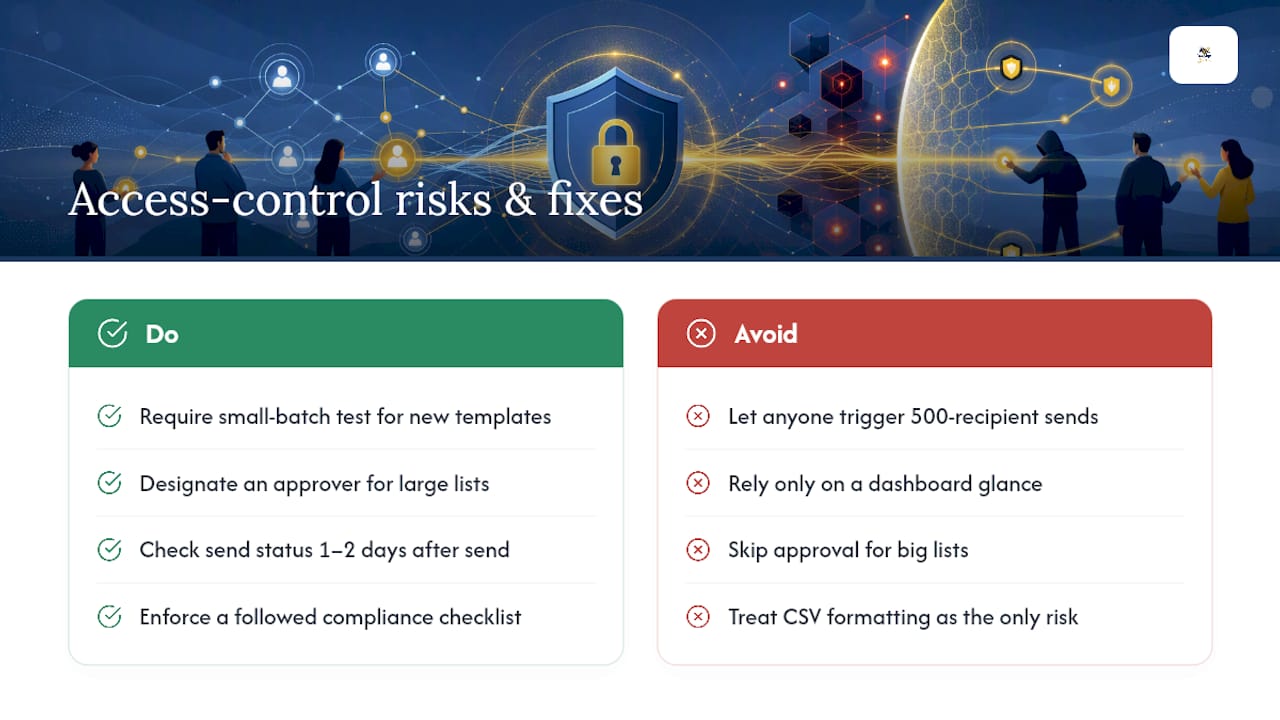
A clean CSV with the wrong recipients attached is a bigger problem than a messy CSV that just bounces back with an error. One fails loudly. The other fails silently, and you don’t find out until someone calls asking why they received a contract meant for a different client.
Before you scale a bulk-send program past the experimental stage, get three things in place: a mandatory small-batch test on every new template, a designated approver for any list over a certain size, and a monitoring habit, not just a glance at the dashboard, but someone actually checking status a day or two after each major send. Pair that with a compliance checklist your team actually follows rather than files away, and bulk sending stops being a risk and starts being infrastructure.
— Mustafa Abusharkh
Sources
- Overview of Send in Bulk | Adobe Acrobat Sign
- Request e-signatures in bulk
- Send in Bulk using a parent template | Adobe Acrobat Sign
Recommended
Ready to transform your workflow?
Start using BeeSign today and experience the future of document signing