DocuSign Migration: 6 Checks Salesforce Admins Need Before Cutover
Prepare a DocuSign migration for Salesforce with six checks, staging tests, permission planning, rollback steps, and validation before production cutover.

The official migration tool converts legacy eSignature for Salesforce settings, including users, templates, buttons, and envelope configurations, so the fastest path to a safe cutover is a staging-first approach: back up everything, run the conversion in a staging org, validate templates and integrations, then promote to production during a scheduled maintenance window. Post-migration activation and end-to-end testing confirm the move worked before you close the project.
TL;DR:
- Back up templates, envelope settings, user lists, and environment details outside Salesforce, document rollback criteria, and disable scheduled sends before conversion.
- Start with a narrow migration scope in staging, then manually repair unsupported custom fields or conditional logic before expanding to the full organization.
- Test sample envelopes for every signer role, and verify webhook events and status values land in the intended Salesforce fields before production activation.
- Rebuild templates based on deprecated logic, but repair isolated formatting issues; then check sender permissions, activate templates, and retest buttons and Apex triggers.
- Schedule production cutover during a communicated maintenance window, and assign template owners with approval rules to prevent stale templates and uncontrolled copies.
Table of Contents
- Pre-migration quick-start checklist for IT admins
- Step-by-step migration using the official migration tool
- Post-migration validation and common issues to resolve
- Templates, permission profiles, and governance best practices
- What experienced admins prioritize during a DocuSign migration
- How BeeSign supports your migration and ongoing e-signature workflow
- FAQ
- Sources
Pre-migration quick-start checklist for IT admins
Before you touch the migration tool, a short prep phase saves you from the rework that causes most failed cutovers. Treat this checklist as your gate: nothing moves to staging until each item is done.
- Export templates, envelope configurations, and user lists, then store the backups somewhere outside the platform you’re migrating.
- Inventory every custom button, Apex integration, webhook, and external connector tied to your eSignature objects.
- Create or update a Sender + Templates permission profile so template management doesn’t bottleneck on admins alone.
- Select your staging org, schedule a test window, and notify stakeholders in writing.
- Document a rollback plan before you start, not after something breaks.
- Record your current environment settings, timezone, branding assets, and date formats, so you can reapply them after migration.
Run through these in order:
- Confirm backups are complete and accessible.
- Build or verify the Sender + Templates profile.
- Lock in your staging window and communicate it to every affected team.
Pro Tip: Treat the rollback plan as a living document. Update it the moment you discover a dependency you didn’t know about.
Step-by-step migration using the official migration tool
Once your checklist is clear, the actual migration follows a predictable sequence: prepare, run, map, and test. Each phase has its own failure points, so don’t skip ahead.
1. Stage prep. Confirm your backups one more time, finalize permission profiles, and disable any auto-sends or scheduled processes that could fire mid-migration and create duplicate envelopes or conflicting records.
2. Run the conversion. The migration tool converts users, templates, custom buttons, and envelope configurations from legacy eSignature for Salesforce settings into the current application structure. Most tool runs expose options for scope (full org versus selected objects) and for whether to preserve historical envelope data or migrate configuration only; for detailed guidance on migration sequences, refer to this software migration guide. Choose the narrower scope first if you’re testing, then expand once you trust the output.
3. Map and reconcile. After conversion, confirm that migrated templates map correctly to current-app objects. Some fields won’t carry over cleanly, particularly custom field types or conditional logic built into older templates. These need manual fixes, usually a rebuild of the specific field rather than the whole template.
4. Update integrations. Webhooks, Apex code, named credentials, and API keys often point to objects or endpoints that no longer exist after migration. Update each reference and consider a brief code freeze on affected Apex classes while you verify the new configuration. If your organization integrates e-signing through a Microsoft environment, the Microsoft AppSource e-signature connector listing is a useful reference for confirming which connectors need reconfiguration after the switch.
5. Run your staging test plan. This is where most teams find their real problems. Send sample envelopes through every signer role you support. Confirm webhook events fire and land in the right Salesforce fields. Verify that envelope status updates map correctly to your Salesforce records, not just that they arrive, but that they land in the expected field with the expected value.

Pro Tip: Run at least one test envelope through every signer role your business actually uses, not just the simplest one. Role-specific permission issues rarely show up until a real signer with real constraints tries to complete the document.
A staging-first approach with a disciplined test plan, sample envelopes, signer-role exercises, and webhook parity checks, catches the majority of migration problems before they reach production.
Post-migration validation and common issues to resolve
Once staging tests pass, validation in production confirms the migration holds up under real traffic. Work through this list methodically rather than spot-checking at random.
- Activate migrated templates and re-share them according to your updated permission profile.
- Verify sender access matches your intended sharing rules, not the defaults the migration tool applied.
- Resolve unsupported fields and role mismatches: a field that only needs a format fix can be repaired, but a template built on deprecated logic is usually faster to rebuild from scratch.
- Confirm webhook parity and envelope-status mappings into Salesforce by checking recent webhook logs and running a status query against a handful of test envelopes.
- Test custom buttons and Apex triggers in a sandbox-like environment before flipping them on for every user.
- Log every exception you find, categorize it by severity, and define the rollback criteria that would trigger reverting to the legacy setup.
Electronic signatures carry the same legal weight as handwritten ones for most transactions under federal law, according to the ESIGN Act, which is worth confirming applies to your use case before you finalize any template changes that touch consent language or signature blocks.
Most migration failures trace back to one of two causes: a field type the new structure doesn’t support, or a permission profile that didn’t carry over the way admins expected. Catching both in staging is far cheaper than catching them in production.
Templates, permission profiles, and governance best practices
Migration is also a chance to fix governance problems you inherited from the legacy setup. A few patterns reduce admin load and keep templates from drifting out of control again.
- Build a Sender + Templates custom permission profile so business users can manage their own templates without needing admin access for every change.
- Standardize naming conventions and version tags, and require a minimal approval gate before any template goes live.
- Assign clear template ownership and schedule periodic reviews so stale templates get retired instead of accumulating.
- Store canonical templates in a controlled library rather than letting copies spread across individual user accounts.
- Reapply branding and environment settings, logos, email templates, timezone, and date formats, as a dedicated post-migration step rather than an afterthought.
- Turn on identity verification and complete audit trails for any template tied to a high-risk agreement, such as contracts involving financial terms or regulated data.
Platforms built around identity verification and audit trails make this last point easier to execute consistently, since verification and trail logging are part of the sending workflow rather than a separate step admins have to remember.
Pro Tip: Assign one owner per template category, even if that owner isn’t in IT. Shared ownership without a clear owner is how templates go stale.
What experienced admins prioritize during a DocuSign migration

The migrations that go sideways usually share one root cause: a maintenance window that nobody outside IT knew about, followed by signers hitting a broken template mid-transaction. Clear, early communication with stakeholders prevents most of that pain entirely.
Full end-to-end testing in staging catches the integration problems that spot-checks miss, particularly around webhook timing and field mapping. If you only have time to triage in order, work through templates first, then user permissions, then webhooks, then custom code. That sequence matches where failures actually cluster.
— Mustafa Abusharkh
How BeeSign supports your migration and ongoing e-signature workflow
Once your legacy data is validated and mapped, the platform you land on matters as much as the migration itself. We built BeeSign around centralized templates, built-in identity verification, and a developer API that automates sending and status tracking, so your team isn’t rebuilding workflows from scratch after cutover.
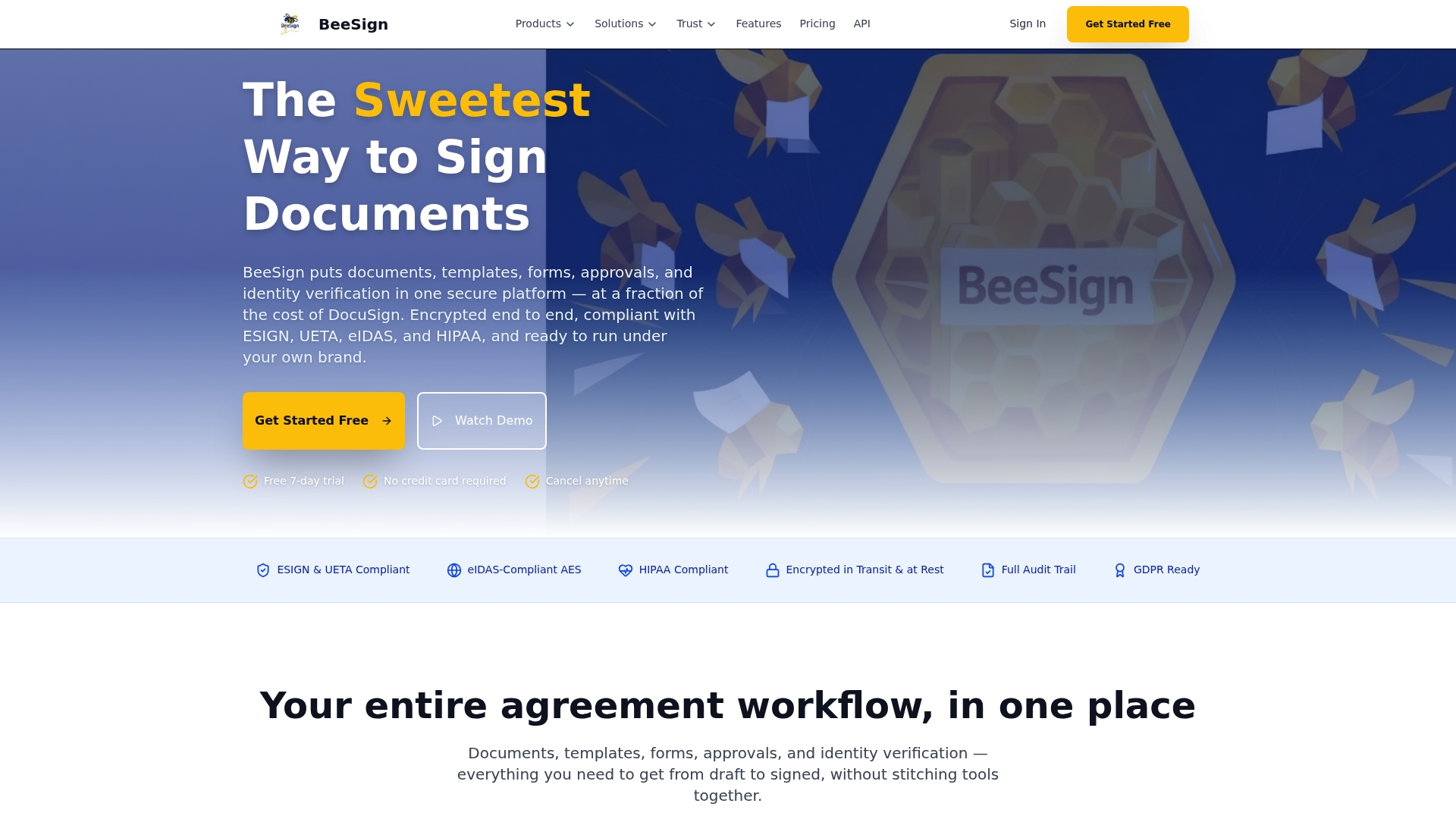
- Centralized template and contract management, so templates don’t scatter across individual accounts again.
- Identity verification features for high-risk agreements.
- A REST API that supports automation of sending, status checks, and record updates.
- White-label and bring-your-own-cloud deployment options for custom branding and cloud storage.
If you’re evaluating a new home for your signing workflows, our electronic signature platform and white-label and BYOC options are built for teams that need compliance and control in one place. Compare the fit against your current setup on our DocuSign vs BeeSign breakdown, or start with the Individual plan to test the workflow before committing further.
FAQ
Can you provide a guide for using DocuSign?
Vendor documentation and admin guides cover setup, sending, and template configuration for current DocuSign applications. For migration specifically, the official migration tool’s admin guide walks through converting legacy eSignature for Salesforce settings, including users, templates, and envelope configurations.
What are the best data migration tools for Salesforce?
The right tool depends on what you’re moving: Salesforce-native migration tools handle object and record data, while the official eSignature migration tool specifically converts signature-related settings like templates and buttons. For integrations involving Microsoft environments, the Microsoft AppSource e-signature connector listing is a useful reference for compatible connectors.
How do I transfer documents to a new e-signature platform?
Most platforms support bulk export of documents and templates as files you can then import into the new system, though field mapping for custom or conditional fields usually needs manual review. Running a staging test with sample documents before a full transfer catches mapping issues early.
Does Microsoft have a version of DocuSign?
Microsoft doesn’t publish its own native e-signature product, but Microsoft environments integrate with e-signature platforms through connectors listed on Microsoft AppSource. Many organizations pair those connectors with a dedicated e-signature platform like BeeSign for signing workflows inside Microsoft tools.
What should I check for compliance during migration?
Confirm your new or migrated setup satisfies the signature validity standards your transactions require, since the ESIGN Act establishes that electronic signatures hold the same legal standing as handwritten ones for most federal transactions. Also reconcile any consent or cookie-preference settings referenced in your migration documentation, since platforms like OneTrust are commonly used to manage those preferences.
Sources
- Electronic Signatures in Global and National Commerce Act (15 U.S.C. §7001)
- OneTrust — Consent and preferences solutions
Recommended
Ready to transform your workflow?
Start using BeeSign today and experience the future of document signing