eSignature Google Workspace Integration: A Full Setup Guide
Discover how to seamlessly integrate eSignature in Google Workspace for quick approvals and contracts without extra apps.

Yes, Google Workspace includes a built-in eSignature feature inside Docs and Drive, and administrators control whether it’s turned on. For most internal approvals and simple external contracts, the native tool works fine. But once you need identity verification, custom branding, or storage under your own cloud infrastructure, a white-label platform like Beesign fills the gap Workspace leaves open.
TL;DR:
- Google Workspace’s built-in eSignature feature is suitable for low-volume, internal approvals but lacks identity verification, branding, and cloud storage control for regulated or branded workflows.
- Admins enable the feature via the Admin Console, but propagation delays and conflicting policies can cause confusion during rollout, so testing with pilot groups is recommended.
- For higher automation, branding, or compliance needs, third-party solutions like Beesign offer white-label options, identity verification, and bring-your-own-cloud storage, unlike native Google tools.
- The native tool relies on email access for identity proof and stores audit trails within Drive, which may not meet requirements for regulated industries or strict data residency standards.
- Common issues include missing options due to plan restrictions or propagation delays, which can be mitigated by proper setup, organized folder structures, and user training.
Table of Contents
- How Do You Request and Sign Documents in Google Docs and Drive?
- Where Do Admins Enable eSignature in the Admin Console?
- Should You Use Add-Ons, Marketplace Apps, or the API?
- What Are the Limits of Native Workspace eSignature?
- What Security and Compliance Standards Apply to Workspace eSignature?
- What Should You Check When Something Goes Wrong?
- When Does Native Workspace eSignature Actually Make Sense?
- Ready to Extend Workspace With Beesign?
- Where Can You Find Official Documentation and Setup Guides?
- Sources
How Do You Request and Sign Documents in Google Docs and Drive?
You don’t need a separate app to send your first signature request. Workspace built the feature directly into the tools you already use, and the workflow takes about two minutes once you know where to look.
In Google Docs, open your document and go to Tools > eSignature. In Google Drive, right-click a PDF, or open it and use the menu, then select eSignature from the options that appear. Both paths lead to the same request builder.
Here’s the sequence for sending a request:
- Open the document you want signed and launch the eSignature tool from the Tools menu or Drive context menu.
- Add each signer by email address, in the order you want them to sign if sequencing matters.
- Place signature fields, date fields, and any text fields directly on the document where you need input.
- Review the field placement, then send the request.
Signers get an email with a secure link. They don’t need a Google account to open it. They can review the document, sign or reject it, and the sender gets notified either way.
Once everyone signs, the completed PDF and its audit trail land back in the requester’s Drive folder, sitting alongside the original file. That’s convenient until you’ve sent many contracts in a month and your Drive folder turns into a scroll-fest of near-identical filenames.
Set up a simple folder structure before volume picks up. A “Signed Contracts” subfolder with a consistent naming pattern (client name plus date) saves you from hunting through files later.
Pro Tip: Rename the source document before sending it for signature. Workspace keeps the original file name for the signed version, so “Untitled document” turns into a permanent audit trail headache if you skip this step.
Where Do Admins Enable eSignature in the Admin Console?
Rollout starts with a single console path: Apps > Google Workspace > Drive and Docs > eSignature. From there, admins toggle the feature on or off for the entire organization or for specific organizational units.
The feature ships enabled by default for eligible plans, which include Workspace Individual, Business Standard, Business Plus, Enterprise Starter, Enterprise Standard, Enterprise Plus, Enterprise Essentials, Enterprise Essentials Plus, and Education Plus. If your users don’t see the option, check your plan tier before assuming something’s broken. Google notes access can take a few minutes to propagate after you flip the setting.
A few things trip up admins during rollout:
- Settings applied at the top-level OU don’t always override child OU restrictions if a child unit already has a conflicting policy.
- Users report the feature “missing” simply because propagation hasn’t finished yet.
- Mixed license environments (some users on eligible plans, others not) create confusing support tickets when only half the team can see the tool.
For governance, enable the feature for a pilot group first rather than flipping it on for the whole domain at once. That gives you room to test naming conventions and catch permission issues before they multiply across every department.
Pro Tip: Document your OU structure before enabling eSignature broadly. It’s much easier to grant access incrementally than to claw back a feature after employees have started relying on it for daily contracts.
Should You Use Add-Ons, Marketplace Apps, or the API?
Workspace’s native tool covers the basics, but plenty of teams need more automation, more branding control, or a way to trigger signature requests from another system entirely. Three paths exist, and each trades simplicity for control differently.
Marketplace add-ons install in a few clicks from the Google Workspace Marketplace. You grant the app permission to access Drive and Docs, and it slots into your existing menus. This is the fastest way to add extra signing features, though you’re limited to whatever workflow the add-on’s developer built.
REST APIs open the door to real automation. Instead of a human opening a document and manually adding signers every time, an API call can trigger a signature request the moment a deal closes in your CRM or a form gets submitted on your website. This matters for teams sending the same type of document repeatedly, like offer letters, service agreements, or onboarding paperwork.
The tradeoffs break down like this:
- Add-ons win on speed of setup but offer limited customization and no control over branding.
- APIs require developer time upfront but pay off in reduced manual work and fewer errors once templates are built.
- Native Workspace eSignature works well for occasional, one-off requests but wasn’t built for high-volume automated workflows.
Beesign takes the middle path here. It connects directly to Google Drive so you can sign documents without leaving your existing folder structure, while also offering a full REST API for teams that want to automate template-driven requests, embed signing into their own product, or run bring-your-own-cloud storage for compliance reasons Workspace’s native tool doesn’t address.
What Are the Limits of Native Workspace eSignature?
The built-in tool is genuinely useful for low-stakes, low-volume signing. It falls short the moment your organization needs more than “get a signature on a PDF.”
Here’s what’s missing:
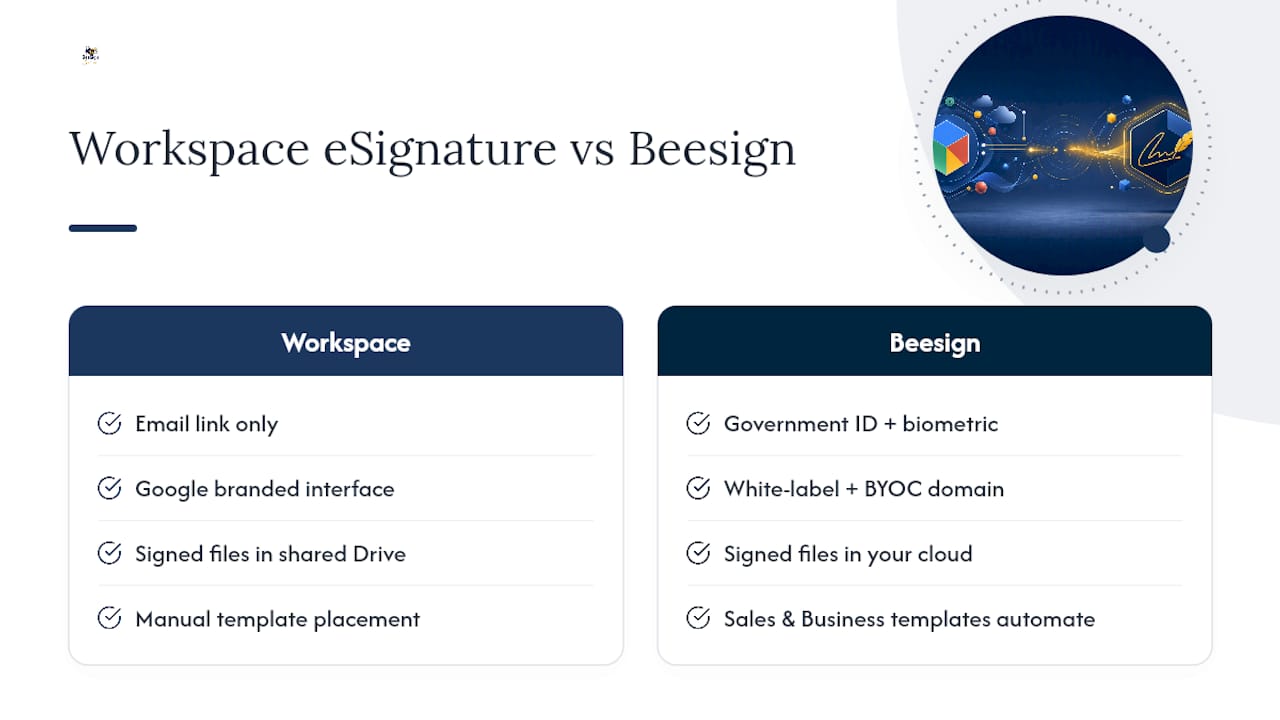
- Identity verification is minimal. There’s no government ID capture or biometric matching, so you’re relying on email access as your proof of identity.
- Branding doesn’t exist. Every signer sees Google’s interface, not your company’s name or logo.
- Storage stays inside the requester’s Drive, with no option to route documents into your own cloud infrastructure.
- No white-label or BYOC option, which matters if your compliance policy requires signed documents to stay within infrastructure you control.
These gaps become real problems for specific triggers: HIPAA-covered workflows, regulated industries like finance or real estate, any process where you need to prove who actually signed (not just that a link was clicked), or a customer-facing signing experience that needs to look like your brand instead of Google’s.
This is where Beesign’s proof points become relevant. The platform offers white-label deployment with custom domains, bring-your-own-cloud storage so signed documents never leave your infrastructure, government ID and biometric face-matching identity verification, blockchain timestamp proof, and a REST API for automating high-volume signing.
A quick decision checklist:
- Internal approvals only, low volume, no branding needs? Native Workspace works.
- External client-facing documents, need your logo and domain? Move to a white-label solution.
- HIPAA, financial services, or any regulated identity requirement? Native tool won’t cut it.
- Sending hundreds of documents a month through templates? Build on an API.
Pro Tip: Run a quick audit of your last 20 signed documents. If more than a few needed real identity proof beyond “they clicked the email link,” that’s your signal to move past the native tool.
What Security and Compliance Standards Apply to Workspace eSignature?
Google’s eSignature tool relies on certificates issued by a certificate authority approved under the Adobe Approved Trust List (AATL), which gives the signatures a recognized baseline of authenticity that other PDF readers can verify.

The audit trail attached to each completed document records signer actions and timestamps, and it lives in the same Drive folder as the finished file. That means visibility and retention follow standard Drive sharing permissions, which is fine for internal governance but doesn’t give you the data residency guarantees some compliance frameworks demand.
Before you rely on the native tool for anything regulated, check these:
- Does your compliance framework (HIPAA, GDPR, or an industry-specific standard) require documents to stay in a specific storage location?
- Do you need signer identity verified beyond email access?
- Does your organization need audit logs retained outside standard Drive sharing rules?
- Do you need a documented chain of custody with timestamp proof beyond what Drive’s revision history offers?
If you answered yes to any of those, bring-your-own-cloud storage and stronger identity verification become worth the switch, since they close the gap between what Workspace ships with and what regulated workflows actually require.
What Should You Check When Something Goes Wrong?
Most eSignature hiccups trace back to a handful of causes. Work through this list before opening a support ticket:
- eSignature option missing from the menu — confirm your Workspace plan includes the feature and check with your admin whether it’s enabled for your OU.
- Permission errors when adding signers — verify the signer’s email is correct and that sharing restrictions on the document aren’t blocking external access.
- Signer says they never got the email — ask them to check spam, and confirm the email address was typed correctly during setup.
- Duplicate or cluttered files in Drive — this usually means no naming convention was in place before volume picked up; retroactively organize into dated subfolders.
For rollout, start with a pilot group, build a one-page training doc, and set a retention policy before opening the feature to your whole domain. If your needs outgrow the native tool’s scope, that’s the point to scope an integration project rather than patch around the limitations.
When Does Native Workspace eSignature Actually Make Sense?
Native Workspace eSignature earns its place for internal sign-offs, quick approvals between colleagues, and occasional external contracts where identity verification isn’t a real concern. It’s built into tools your team already opens daily, and that convenience is legitimate.
The calculation changes once you’re signing at scale, operating in a regulated industry, or need signers to see your brand instead of Google’s interface. Recommending Beesign here isn’t about dismissing the native tool. It’s about matching the tool to the actual risk and volume in front of you. If you’re evaluating a move beyond Workspace’s defaults, Beesign’s resources walk through identity verification, API automation, and white-label deployment in more depth than a single guide can cover.
— Mustafa Abusharkh
Ready to Extend Workspace With Beesign?
Beesign picks up exactly where Google Workspace’s eSignature tool leaves off. Instead of relying on an email link as your only proof of identity, you get government ID capture and biometric face matching built into the signing flow. Instead of every signer seeing Google’s generic interface, your documents carry your own domain and branding under Beesign’s white-label and BYOC setup, with signed files stored in cloud infrastructure you control rather than a shared Drive folder.
If your team sends the same type of document on repeat, offer letters, service agreements, client contracts, the Sales & Business workflows built into Beesign handle template automation without manual field placement every time. Developers can wire signing directly into existing systems using the API reference instead of relying on manual add-on clicks.
Start with a 7-day free trial, map your current signing volume against the decision checklist above, and pilot Beesign with the documents that need identity verification or branding the most.
Where Can You Find Official Documentation and Setup Guides?
For exact console steps and screenshots, check Google’s own eSignature support page and the Admin console guide for enabling or disabling the feature. Google’s Workspace Updates blog covers the PDF eSignature rollout timeline. For implementation details on white-label and API deployment, visit Beesign’s product resources.
Sources
- Send signature requests & sign documents with eSignature - Google Docs Editors Help
- Turn eSignature on or off for users | Drive & Docs | Google Workspace Help
- Request an eSignature on PDF files - Workspace Updates
Recommended
Ready to transform your workflow?
Start using BeeSign today and experience the future of document signing