Online PowerPoint Viewer: Open Slides in Any Browser
Discover how to use an online PowerPoint viewer to open slides safely in any browser with options for privacy, editing, or convenience.

You can open a PowerPoint in any browser three ways: a cloud web app, a client-side in-browser viewer that never uploads your file, or a server-rendered viewer that processes the deck on someone else’s server. For most people, the fastest safe option is a client-side viewer, since your file stays on your device the entire time. Cloud apps like PowerPoint for the web win on fidelity and editing power. Server-rendered tools win on convenience but ask you to trust their retention policy.
Here’s the quick breakdown:
- Cloud web app — best for editing, comments, and full font/animation support (requires an account and a file upload to OneDrive or Dropbox).
- Client-side viewer — best for privacy; the file never leaves your browser tab.
- Server-rendered viewer — best for quick, no-account viewing of files that don’t contain sensitive data.
If your deck has confidential figures or client data, open it with a client-side viewer first. If you just need to check slide layout on the fly, any option above works.
Key Takeaways
Client-side, no-upload viewers are the safest default for sensitive PowerPoint files, while cloud apps and server-rendered tools trade some privacy for editing power or convenience.
| Point | Details |
|---|---|
| Pick viewer by sensitivity | Use a client-side viewer for confidential decks; cloud or server tools for public ones. |
| Convert .ppt to .pptx first | Legacy .ppt files render less reliably than modern Open XML .pptx files. |
| Watch file size limits | Free viewers often cap uploads around 25 to 50 MB; compress media beyond that. |
| Test complex slides first | Preview the most animation-heavy slide before presenting to catch rendering issues. |
| Escalate sensitive decks | Contracts and identity data belong in an audited, BYOC-backed workflow, not a random uploader. |
Table of Contents
- How to view a PowerPoint online in three steps
- What to check before you open a deck online
- Privacy and technical limits of browser-based viewers
- Fast fixes when a slide won’t render
- Secure workflows for sensitive presentation decks
- Where to learn more about viewing PowerPoint online
- The privacy-first case for viewing PowerPoint online
- Frequently asked questions about online PowerPoint viewers
- Sources
How to view a PowerPoint online in three steps
Before you touch a single button, decide which viewer type fits the job. A client-side viewer is your default for anything sensitive, since the browser never sends your file anywhere. A cloud app is better when you need to leave comments or tweak text. A server-rendered viewer is fine for a quick look at a deck that has nothing to hide.
- Open your viewer. For a client-side tool, drag your file directly onto the page, as usetool.org’s PowerPoint viewer supports, so nothing leaves your device. For a cloud app, save the file to OneDrive or Dropbox first, then open it with PowerPoint for the web, Microsoft’s free browser-based editor that replaced the old PowerPoint Viewer desktop app after its 2018 retirement.
- Navigate the deck. Use arrow keys or on-screen next/back buttons on desktop; swipe left and right on mobile. Most viewers also support a thumbnail sidebar for jumping between slides.
- Enter present or fullscreen mode. Click the fullscreen icon (usually top right) to hide browser chrome and present cleanly. Many viewers, including Aspose’s PPTX viewer, let you export the deck to PDF or images afterward, which is handy for sharing with someone who has no viewer at all.
Speaker notes typically appear in a separate panel below or beside the slide canvas, not inside the fullscreen view itself, so check for a “notes” toggle before you present live.
Pro Tip: If the deck contains client contracts, salary data, or anything you wouldn’t want cached on a stranger’s server, skip the upload entirely and use a client-side viewer or your organization’s own document platform.
What to check before you open a deck online
Not every PowerPoint file behaves the same way once it hits a browser. The single biggest factor is file format: .pptx (the modern Open XML format) renders far more reliably than the older binary .ppt format, since many online viewers only extract plain text from .ppt files and drop the layout entirely. If you’re stuck with a legacy .ppt file, convert it to .pptx first using PowerPoint itself or a trusted conversion tool, then upload the converted version.
Even with a modern .pptx file, some elements are more fragile than others:
- Complex animations and slide transitions — often simplified or skipped in browser rendering.
- Embedded custom fonts — may fall back to a generic system font if the viewer can’t load the original.
- Embedded video and audio — playback support varies widely between viewers.
- Layered or grouped objects — occasionally shift position slightly during conversion.
Run a fast fidelity check before you present: open the single most complex slide in your deck, the one with the most animation or the fanciest chart, and see how it renders. If it looks wrong, export that slide to PDF as a backup. When picking a viewer, look for present mode, a visible speaker-notes panel, working media playback, and sensible font fallback rather than a blank text box.
Privacy and technical limits of browser-based viewers
Client-side viewers process your file entirely inside the browser tab, so nothing gets sent anywhere. Server-side viewers upload your file to a remote server, render it into slide images or a preview, then typically delete the file after a short retention window. GroupDocs Viewer, for example, documents this exact pattern: upload, render, auto-delete. That’s a reasonable trade-off for a public sales deck. It’s a bad trade-off for anything with client names, financial figures, or personal data.
File size is the other constraint. Most free online viewers cap uploads somewhere in the tens of megabytes, and even under that cap, a browser tab can run out of memory on decks packed with high-resolution images or embedded video.
Typical limit: Online PPT viewers commonly restrict uploads to roughly 25 to 50 MB, and performance research on PowerPoint file sizes notes that browser memory, not just file size, is what actually causes slowdowns on media-heavy decks.
Practical fixes: compress embedded images and video before uploading, split a huge deck into two files, export the heaviest slides as static images, or fall back to desktop PowerPoint for anything over that range.
Fast fixes when a slide won’t render
Most rendering problems clear up with a small change, not a full reinstall. Work through these in order:
- Switch browsers or devices. Chrome, Edge, Safari, and Firefox all handle PowerPoint rendering slightly differently; a slide that breaks in one often displays fine in another.
- Clear your cache and disable extensions. Ad blockers and privacy extensions occasionally interfere with file uploads or embedded scripts.
- Convert .ppt to .pptx and retry. This alone fixes a large share of layout and font issues.
- Export stubborn slides as images or PDF when exact fidelity matters more than editability, as several viewers support directly, including convertico.com’s PPTX viewer.
- Compress or remove large embedded videos, or split the deck, if the browser tab freezes or crashes outright.
If the file is sensitive, don’t troubleshoot by uploading it to yet another random server. Go back to a local, client-side viewer instead.
Secure workflows for sensitive presentation decks
A pitch deck with investor financials or a contract walkthrough with client identity data doesn’t belong on just any free viewer. Once a presentation touches sensitive material, the calculus changes from “convenient” to “compliant.”
Organizations that regularly share sensitive decks benefit from the same controls Beesign applies to document signing: white-labeled sharing under your own domain, bring-your-own-cloud storage so files never leave your infrastructure, full audit trails, and identity verification for anyone accessing the material.
- Avoid third-party uploads for decks containing contracts, financials, or personal data.
- Prefer in-house or enterprise-grade platforms when a presentation doubles as a legal or compliance document.
- Pair viewing with a retention policy: know who can access a shared deck and for how long.
When a slide deck stops being a pitch and starts being a record, an audit trail, identity verification, and BYOC storage matter more than a slick viewer.
Where to learn more about viewing PowerPoint online
- Microsoft Support: view a presentation without PowerPoint, including guidance on PowerPoint for the web.
- Aspose’s online PPTX viewer documentation on browser rendering and export.
- usetool.org’s client-side PPTX viewer for no-upload viewing.
- Beesign’s identity verification tools for teams handling sensitive shared documents.
The privacy-first case for viewing PowerPoint online
Most advice on this topic treats every online viewer as interchangeable, as if the only question is “does it open the file.” That’s backwards. The real question is where your data goes while it’s being rendered, and conventional roundups rarely mention it.

Client-side viewers deserve more attention than they get. They solve the actual problem, exposure, rather than just the surface problem, access. A server-rendered viewer that deletes files after 24 hours is still a viewer that had your file, even briefly. For a public webinar deck, that’s a non-issue. For a board presentation or a client contract walkthrough, it isn’t.
The judgment call readers should make first isn’t “which viewer has the best interface.” It’s “does this deck contain anything I wouldn’t want on someone else’s server, even temporarily.” Answer that honestly, then pick the viewer category, not the other way around. Enterprise teams handling contracts and identity documents alongside presentations should extend that same instinct to their entire document workflow, not just the slides.
Frequently asked questions about online PowerPoint viewers
Do I need PowerPoint installed to view a PPTX file online? No. You can open .pptx files in any modern browser using a client-side viewer, a cloud app like PowerPoint for the web, or a server-rendered tool, none of which require the desktop application.
Is it safe to upload a PowerPoint file to a free online viewer? It depends on the viewer’s processing model. Server-rendered viewers upload and temporarily store your file, so avoid them for sensitive decks and choose a client-side, no-upload viewer instead.
Why do my animations look different in an online viewer? Browser-based rendering engines often simplify or skip complex animations and transitions that PowerPoint’s desktop app handles natively. Test the slide beforehand and export to PDF if exact fidelity matters.
What’s the difference between .ppt and .pptx for online viewing? .pptx is the modern Open XML format and renders far more reliably in browsers. Legacy .ppt files often lose layout entirely, since some viewers only extract text from the binary format.
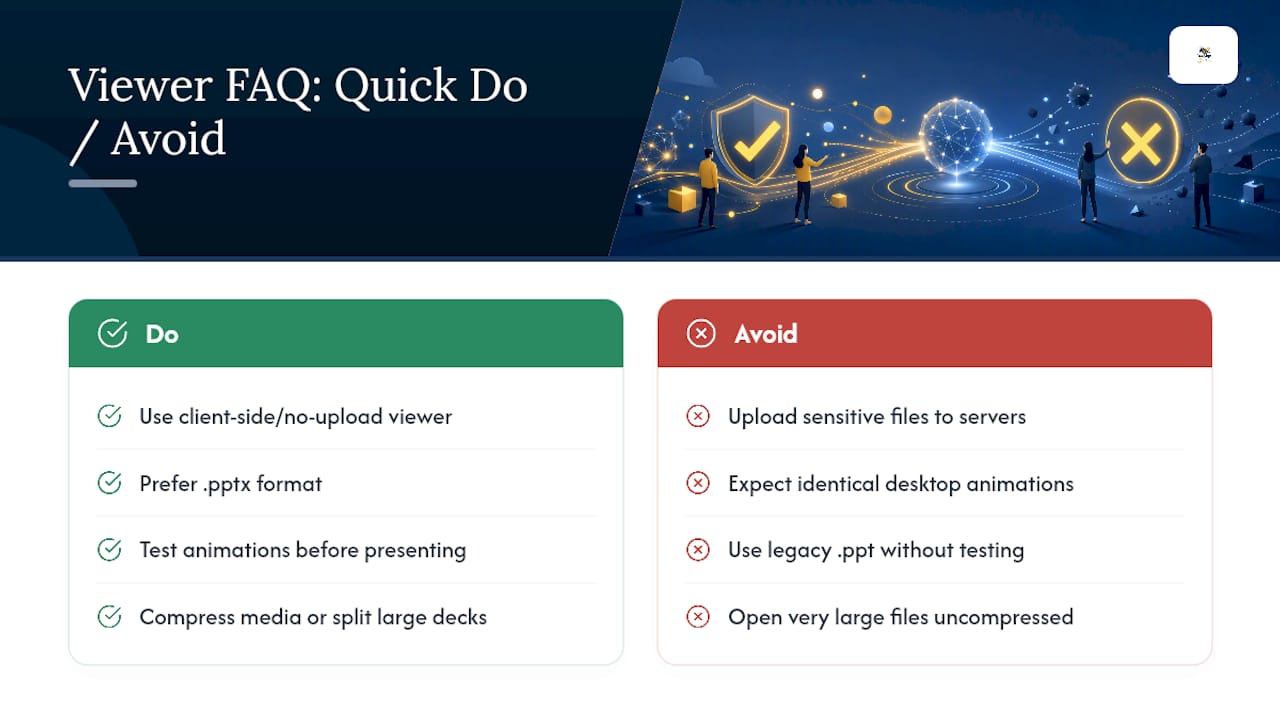
How large a file can I open in a browser-based viewer? Most free tools cap uploads around 25 to 50 MB, and even smaller files can strain browser memory if they contain high-resolution images or video. Compress media or split large decks for smoother performance.
Sources
- View a presentation without PowerPoint | Microsoft Support
- View PowerPoint files online | Free GroupDocs Apps
- PowerPoint Viewer & Editor — Free Online PPTX Viewer | usetool.org
Recommended
Ready to transform your workflow?
Start using BeeSign today and experience the future of document signing