Signer File Uploads: Set Up Fields and Keep the Audit Trail
Add signer upload fields, set file rules, and plan ESIGN retention. Learn when to collect documents and how BeeSign keeps files with audit records.

Yes, most e-signature platforms let signers upload supporting files as part of the signing process. You add a signer-facing upload field to your template or envelope, and the uploaded file attaches directly to that signer’s record. For the upload to hold up later, it needs to live alongside the envelope’s audit trail, not in a separate folder you have to match up by hand.
TL;DR:
- Place required eligibility files, such as a driver’s license, before the signature field; supplementary receipts can follow it, preventing incomplete applications from progressing.
- Accept PDF, JPG, PNG, and DOCX, state the per file limit before upload, validate format and size on the server, and scan files for malware.
- ESIGN requires electronic records to remain accurately reproducible; consumer transactions may also require affirmative consent, while HIPAA files need access logs and encryption.
- Use identity checks for government ID uploads, not routine invoices, and verify the signer before or during upload so both records share an audit trail.
- Test uploads on phones and computers, in at least two browsers, with slow connections and large files; precollect documents when review or conversion comes first.
Table of Contents
- 1. Step-by-step: add a file-upload field to your workflow
- 2. Supported file types, size limits, and validation best practices
- 3. Signer experience: instructions, prompts, and what the signer sees
- 4. Security, retention, and legal points you must plan for (ESIGN & records)
- 5. Testing and troubleshooting signer uploads
- 6. How BeeSign supports signer file uploads (platform capabilities)
- 7. Best practices for integrating file uploads with identity verification to enhance signer authentication
- 8. How to customize and brand the file upload experience in white-label solutions
- 9. API methods for automating file uploads and managing uploaded documents programmatically
- 10. Compliance specifics for file uploads under regulations like HIPAA and eIDAS beyond general legal considerations
- 11. When to request signer uploads vs. pre-collecting documents
- BeeSign: where to get audit-ready signer uploads
- FAQ
- Sources
1. Step-by-step: add a file-upload field to your workflow
Adding an upload field is a template or envelope setting, not a code change, and most platforms expose it in the same field palette you use for signature and initial blocks.
- Open your template or one-off envelope and locate the field palette for the recipient role that needs to submit a file.
- Drag an upload or attachment field onto the document at the point where you want the signer to act.
- Decide whether the field is required or optional, and whether it accepts a single file or multiple files per signer.
- Label the field clearly, such as “Upload driver’s license” or “Attach signed W-9,” so the stored file is identifiable without opening it.
- Place the field before the signature block if you need to confirm eligibility before the signer proceeds, or after it if the file is purely supplementary.
- Add a short metadata prompt, such as document type, date, or a one-line description, so uploaded files stay searchable in your records.
Field placement matters more than it looks. A background-check waiver that depends on a license upload should sit before the signature line, so the signer cannot complete the agreement without it. A receipt or supporting invoice that just needs to travel with the contract can sit after. For template design patterns beyond upload fields, our guide on how to add signature fields walks through placement logic you can apply here too.
2. Supported file types, size limits, and validation best practices
Choosing the right formats up front saves you support tickets later.
- Accept common formats: PDF, JPG, PNG, and DOCX cover nearly every document a signer is likely to submit.
- Treat PDF as the preferred format for final records, since it renders consistently across devices and resists accidental edits.
- Set a clear size limit per file and state it in the upload instructions, not just in an error message after the fact.
- Validate on both ends: use client-side checks to catch oversized or wrong-format files before upload, and server-side validation to confirm MIME type regardless of what the browser reports.
- Run uploaded files through malware scanning before they enter permanent storage.
- Convert accepted files to a standard archival format, typically PDF, so your record store stays consistent even when signers submit mixed formats.
3. Signer experience: instructions, prompts, and what the signer sees
The upload step is where signing sessions stall if the instructions are vague. Tell signers exactly what to expect before they tap the field.
- Use microcopy like “Upload a PDF or photo of your ID, max 10 MB” instead of a bare “Upload file” label.
- Show the filename or a thumbnail immediately after upload, then confirm success with a short message such as “File received.”
- Keep the upload step mobile-first: a camera-capture option and large tap targets matter more than extra configuration options on a phone screen.
- Ask for metadata, like a document type dropdown, instead of a free-text field whenever you can, since it adds structure without adding typing.
Pro Tip: Keep the upload prompt to one sentence and one example filename. Signers skim mobile screens, and a long instructional paragraph gets ignored more often than it gets read.
4. Security, retention, and legal points you must plan for (ESIGN & records)
Under the ESIGN Act’s general rule of validity, an electronic record cannot be denied legal effect solely because it is electronic, but it must be capable of being retained and accurately reproduced for later reference. That requirement applies directly to signer-uploaded files, not just to the signature itself.
Records must be retained in a form capable of being accurately reproduced for later reference by all parties entitled to retain them.
That standard comes from how ESIGN’s consumer-consent provisions are interpreted: when a transaction involves records required by law to be in writing, you need affirmative consumer consent and clear disclosure of hardware and software requirements before relying on an electronic record. FTC advisory guidance reinforces the same point: electronic authorizations need to be retained and reproducible, and clear instructions help satisfy that bar.
Tie every uploaded file to the envelope’s audit trail and timestamp it the moment it lands, the same way the signature itself gets logged. Our explainer on electronic signatures and audit trails covers how tamper-evident logging works in practice.
For storage, plan around four controls: encryption at rest and in transit, role-based access so only authorized staff can open uploaded files, virus scanning on intake, and an indexed retention policy so files are retrievable years later, not just the week they arrive — see this overview of secure online fax for regulated documents for analogous requirements in secure document delivery. If a signer requests a paper copy under ESIGN’s consumer-consent rules, you need a process ready to produce one.
5. Testing and troubleshooting signer uploads
Before you launch an upload-enabled workflow, run it through a short preflight checklist.
- Test the upload field on desktop and mobile, across at least two browsers.
- Test on a slow network connection and with a large file to see how the field handles delay.
- Test multiple-file uploads if your field allows more than one attachment per signer.
- Confirm the uploaded file appears correctly in the final envelope and audit trail, not just in a temporary preview.
Most upload failures trace back to a handful of causes: a CORS misconfiguration blocking the browser from reaching storage, a timeout set too short for large files, or a MIME type the server rejects even though the browser accepted it. When you escalate an issue, pull the envelope ID, the timestamp from the audit trail, and the browser or device the signer used.
Pro Tip: Ask the signer to resend a screenshot of any error message. Half of upload complaints turn out to be a file exceeding the size limit, not a platform bug.
6. How BeeSign supports signer file uploads (platform capabilities)
We built signer-facing upload fields that attach directly to the envelope and its audit trail, so every uploaded file carries the same timestamp and chain-of-custody record as the signature itself. Files can be stored in your own configured cloud storage through our bring-your-own-cloud (BYOC) option, which keeps uploaded documents inside your infrastructure rather than a shared third-party bucket.
For teams that need to act on uploaded files automatically, our developer API lets you pull documents out of completed envelopes and route them into downstream systems without manual download steps. Our identity verification adds a check on who is submitting a file, which reduces the risk of a fraudulent upload entering your records. You can see how envelopes and templates come together in our walkthrough on sending electronic signatures with BeeSign.
7. Best practices for integrating file uploads with identity verification to enhance signer authentication
A file upload field alone tells you a file arrived, not who put it there. Pairing uploads with identity verification closes that gap, which matters most when the uploaded document is itself proof of identity, like a driver’s license or passport photo.
Sequence the steps so identity verification happens before or alongside the upload, not after the envelope is already complete. If your workflow requires a government ID photo, run that capture through a verification step that checks the document against a biometric face match, rather than simply accepting whatever image the signer attaches. That way the uploaded file and the verified identity are tied together in the same audit record, instead of existing as two separate, disconnected pieces of evidence.
Keep the verification step lightweight on mobile. Signers are far more likely to abandon a session that asks for a selfie and an ID photo through a clunky interface than one that walks them through two quick camera captures with clear instructions at each step. Log the verification result, the timestamp, and the uploaded file reference together, so an auditor reviewing the record later can see the full chain in one place rather than cross-referencing separate systems.
Reserve identity verification for the uploads where it actually matters. A signed contract with an attached invoice does not need biometric confirmation, but a notarization-adjacent document or an age-restricted agreement usually does.
8. How to customize and brand the file upload experience in white-label solutions
When you run a signing workflow under your own brand, the upload step needs to feel like part of your product, not a visible handoff to a third-party vendor. White-label configuration typically covers your logo, color scheme, and custom domain, so the upload screen a signer sees carries your branding from the first click to the confirmation message.
Custom domains matter here specifically because signers are often asked to upload sensitive documents, like IDs or financial records, and a recognizable domain reduces hesitation compared to a generic signing-platform URL. Branded confirmation and notification emails extend that same trust signal past the upload itself, into the receipt the signer gets afterward.
A white-label option includes custom domain and branded email configuration alongside bring-your-own-cloud storage, so the uploaded files never leave infrastructure you control even as the front-end experience stays fully branded. That combination matters for organizations in regulated fields, where both the visual experience and the data residency need to meet internal policy. You can review the setup options on our white-label and BYOC page.
9. API methods for automating file uploads and managing uploaded documents programmatically
For teams processing uploads at scale, manually downloading each attachment from a completed envelope does not hold up. A developer API lets you retrieve uploaded files programmatically the moment an envelope completes, rather than relying on someone to check a dashboard.
A typical automated flow includes a webhook or polling endpoint that notifies your system when an envelope status changes, an authenticated request (commonly using a Bearer token) to pull the envelope’s metadata and attached files, and a storage call that routes the retrieved file into your own document management system or cloud bucket. Treat your API key the same way you would treat a password: store it in an environment variable, never hard-code it into a script, and rotate it if you suspect it has been exposed.
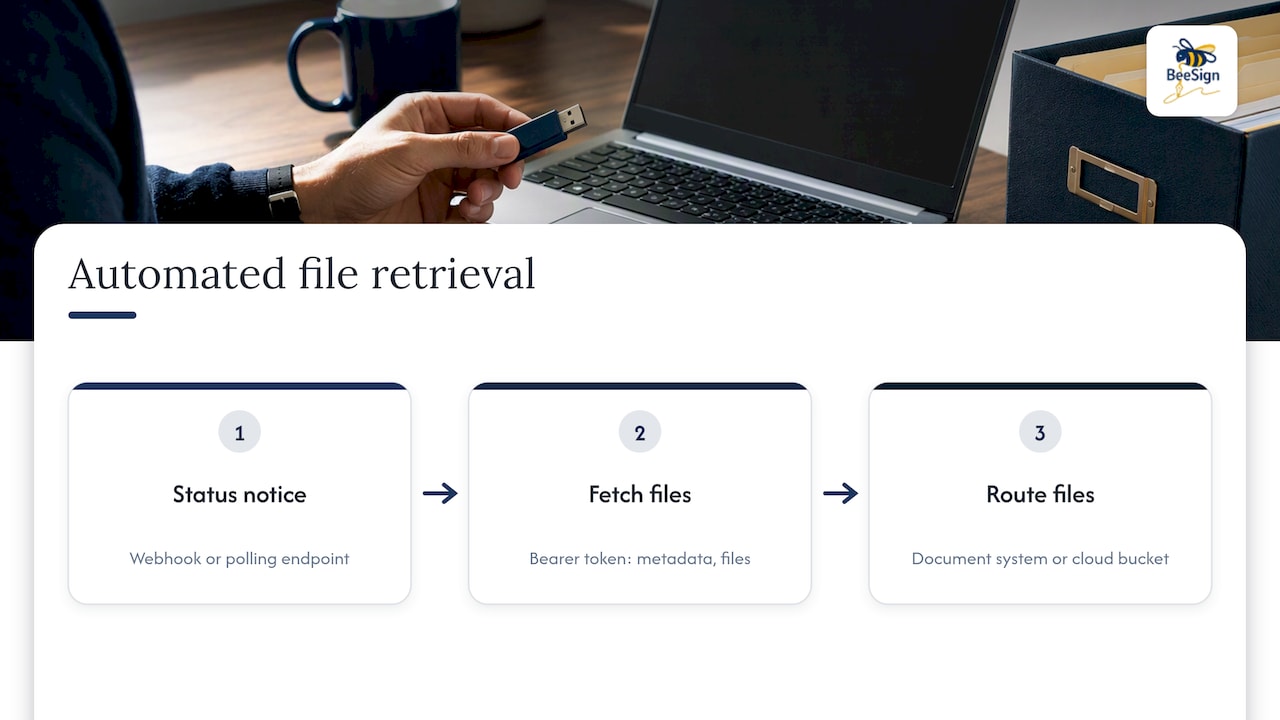
Our API exposes endpoints for envelope status, recipient data, and file retrieval, so you can build a pipeline that extracts uploaded documents and pushes them into whatever system handles downstream processing, whether that is a CRM, a compliance archive, or an internal review queue. Because we build and maintain these integrations for clients directly, you are not left debugging a connection on your own when something changes on either end.
10. Compliance specifics for file uploads under regulations like HIPAA and eIDAS beyond general legal considerations
ESIGN sets the baseline for electronic record validity in the United States, but HIPAA and eIDAS add requirements specific to healthcare data and the European Union, respectively, and both touch signer uploads directly when the uploaded file contains regulated content.
Under HIPAA, an uploaded file that includes protected health information needs encryption in transit and at rest, access limited to authorized personnel, and an audit trail that logs who accessed the file and when, not just who uploaded it. A signing workflow that collects a signed consent form with an attached medical record attachment needs those controls applied to the attachment, not only to the signature page.
Under eIDAS, the European Union’s framework for electronic identification and trust services, the level of assurance required for an electronic signature can affect how an attached document needs to be verified and stored, particularly for qualified electronic signatures that carry the highest legal weight. If your signers are submitting documents that fall under either framework, confirm your storage location and access controls meet the specific regional or sector requirement, not just ESIGN’s general retention standard. Our guide to e-signature compliance requirements covers how these frameworks interact in more detail.
11. When to request signer uploads vs. pre-collecting documents
Collect files at the moment of signing when you need immediate proof, like an ID or a certification, tied directly to that signature event. Pre-collect instead when the document needs review or format conversion before the agreement should proceed, since fixing a bad upload mid-signature slows everyone down. Track completion rate and average time-to-complete for both approaches. That comparison tells you whether the upload step is adding friction worth trimming.
— Mustafa Abusharkh
BeeSign: where to get audit-ready signer uploads
If you need signer uploads that hold up as records, not just files sitting in a folder, our platform ties every upload to the same audit trail and timestamp as the signature.

- Signer-facing upload fields attached directly to envelopes and templates
- Audit trail and timestamp logging on every uploaded file
- Bring-your-own-cloud storage so documents stay in your infrastructure
- Developer API for automated retrieval and downstream processing
- Identity verification with ID capture and biometric face matching
Our Individual plan starts at $9.99 per month, and Enterprise plans with custom integrations are available for teams that need white-label or BYOC deployments. Review the electronic signature product details or start a free trial to see how upload fields work inside a live envelope.
FAQ
How do I upload my signature to a document?
Most e-signature platforms let you draw, type, or upload an image of your signature directly in the signing interface when you reach the signature field. You typically choose from a signature pad, a typed font option, or an uploaded image file, and the platform applies it to every signature field in the document.
What does it mean when it says to upload a document?
It means the sender has added a field that requires you to attach a supporting file, such as an ID, a certificate, or a related document, before or after you sign. The uploaded file attaches to your copy of the envelope and becomes part of the record alongside your signature.
How to send files via Docusign?
Docusign and similar platforms let a sender add an upload or attachment field to a recipient’s role within a template or envelope, which prompts that recipient to attach a file during the signing session. The uploaded file is then stored with the completed envelope rather than sent as a separate message.
Are online signatures legally binding?
Under the ESIGN Act, an electronic signature cannot be denied legal effect solely because it is electronic, provided the record can be retained and accurately reproduced. Specific transactions, such as those involving required consumer disclosures, also need affirmative consent under ESIGN’s consumer-consent provisions.
Sources
- 15 U.S. Code § 7001 - General rule of validity | U.S. Code | US Law | LII / Legal Information Institute
- ELECTRONIC SIGNATURES IN GLOBAL AND NATIONAL COMMERCE ACT (FTC/ESIGN consumer-consent report)
Recommended
Ready to transform your workflow?
Start using BeeSign today and experience the future of document signing